Your name in lights! (Part 3) (BBC BASIC)


Last time in Your name in lights! (Part 2) , we got to grips with BBC Basic and managed to emit some weird runes onto our LED display.
We're going to be building on that foundation here, so if you skipped Part One or Part Two or are still a little shaky on the fundamentals you might want to go back and read them again.
To move forward, I'm going to assume that you've got SLIDE.COM on the B: drive of your 'Beast, and that you have the corresponding PC utility installed somewhere in your PATH on your development PC. Refer to the SLIDE README if you need more help with that.
I'm also going to assume that you have BBCBASIC.COM on your B drive.
Set up
First things first: clone the Beast User repository on to your development PC.
We're going to start in the scrolltext/bbc_basic/fonts folder.
Background info
This time, we'll see if we can adopt that classic time-honoured writing system: the Latin alphabet!
All of the standard characters on the 'Beast can be represented by an ASCII code: for example the letter A is character number 65 (0x41). It would be convenient to use these values when we're trying to write every-day text to our display, and only resort to codewords when we want a Space Invader, or something.
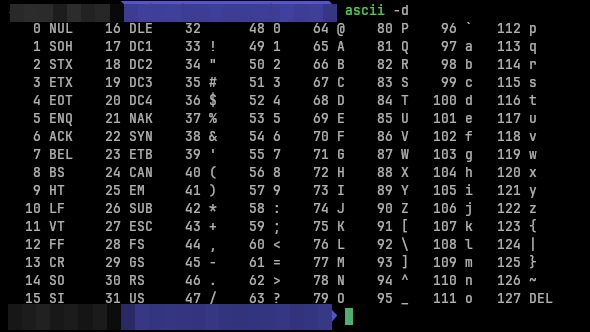
You might guess from the Font Editor I've shown you previously that this involves creating a "Font" which is simply a big table of codewords for every letter, digit or punctuation mark we wish to use, systematically organised in such a way that we can convert from ASCII codes to LED code-words.
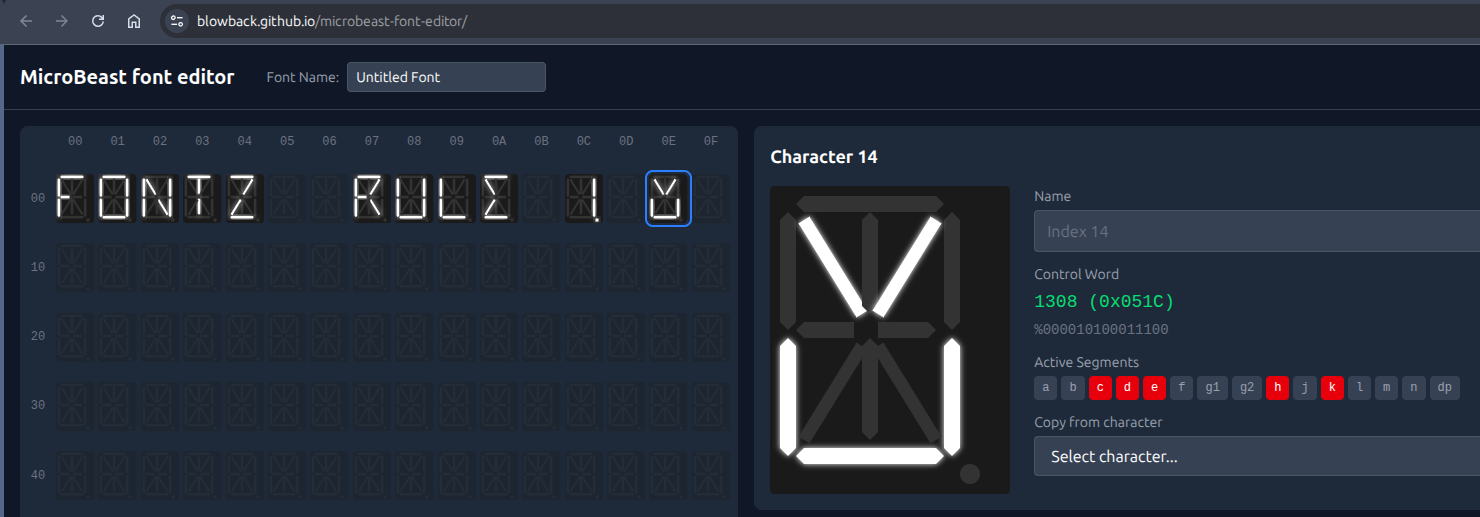
You might also be thinking "Hold on, the 'Beast already displays characters perfectly well, surely someone has already done this work?" - and you'd be right. The 'Beast's designers have already provided a "font" that covers the 94 most exciting characters in the ASCII standard. (ASCII only defines 128 characters in total, and some of those are special control characters that can't be printed to the screen anyway).
You can see the MicroBeast's font table on github.
Unfortunately, the BIOS doesn't provide a convenient way to access this font table from code running on the `Beast. We could figure out its address in the particular firmware we're using, but such an approach is brittle because there are no guarantees that the next version of the firmware will have the font table at exactly the same address, and our code would break.
The alternative is to define our own font table. Rather than mess about defining 94 characters in the Font Editor, we're just going to copy the info from the MicroBeast font table into our own code.
Here's the code we'll be running this time:
10 REM === MicroBeast LED Demo - Step 2: Font Rendering (BBC BASIC) ===
20 REM Display "HELLO" on the last 5 LED positions (columns 19-23)
30 REM using font bitmask data for the 14-segment displays.
40 REM
50 REM Each character has a 16-bit bitmask:
60 REM   Low byte  = outer segments (a,b,c,d,e,f,g1,g2)
70 REM   High byte = inner/diagonal segments (h,j,k,l,m,n)
80 REM
90 REM The font table is indexed from ASCII 32 (space) onwards:
100 REM   index = ASC(char) - 32,  bitmask = font%(index)
110 REM
120 REM --- Load font data into an array (ASCII 32-126, 95 entries) ---
130 DIM font%(94)
140 FOR idx% = 0 TO 94 : READ font%(idx%) : NEXT
150 REM
160 REM --- Display "HELLO" on columns 19-23 ---
170 text$ = "HELLO"
180 FOR pos% = 1 TO 5
190   ch% = ASC(MID$(text$, pos%, 1)) - 32
200   PROCled(font%(ch%), 18 + pos%)
210 NEXT
220 PRINT "Displayed HELLO on columns 19-23"
230 END
240 REM
250 REM --- Write bitmask bm% to LED column col% via MBB_WRITE_LED ---
260 DEF PROCled(bm%, col%)
270 A% = col%
280 L% = bm% MOD 256
290 H% = bm% DIV 256
300 CALL &FDD6
310 ENDPROC
320 REM
330 REM --- Font DATA (ASCII 32-126, 95 entries) ---
340 REM Each value is a 16-bit bitmask for the 14-segment display
350 REM
360 DATA &0000, &4900, &0202, &12CE, &12ED, &2DE4
370 DATA &0B59, &0200, &0C00, &2100, &3FC0, &12C0
380 DATA &2000, &00C0, &4000, &2400
390 DATA &243F, &0406, &00DB, &008F, &00E6, &0869
400 DATA &00FD, &1401, &00FF, &00EF, &0040, &2200
410 DATA &0C40, &00C8, &2180, &5083
420 DATA &02BB, &00F7, &128F, &0039, &120F, &0079
430 DATA &0071, &00BD, &00F6, &1209, &001E, &0C70
440 DATA &0038, &0536, &0936, &003F
450 DATA &00F3, &083F, &08F3, &00ED, &1201, &003E
460 DATA &2430, &2836, &2D00, &00EE, &2409
470 DATA &0039, &0900, &000F, &2800, &0008
480 DATA &0100, &208C, &0878, &00D8, &208E, &2058
490 DATA &14C0, &048E, &1070, &1000, &2210
500 DATA &1E00, &1200, &10D4, &1050, &00DC
510 DATA &0170, &0486, &0050, &0888, &0078
520 DATA &001C, &2010, &2814, &2D00, &028E
530 DATA &2048, &2149, &1200, &0C89, &24C0
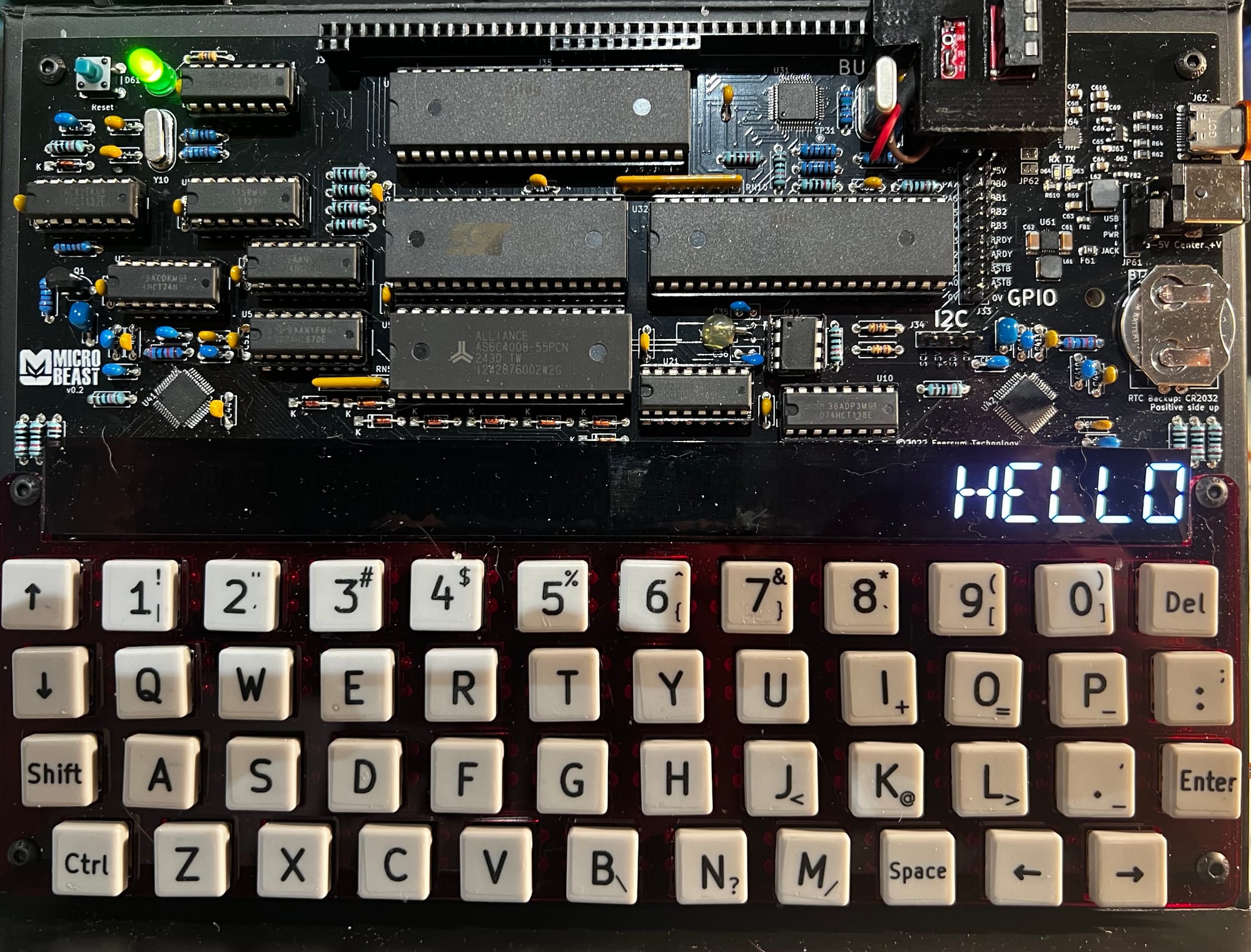
The aim this time around is to write the word "HELLO" in the last 5 characters of the display. We won't be writing code-words either this time: we'll use ASCII characters.
You can see in line 170:
170 text$ = "HELLO"
The $ suffix means "this variable is a string", and a "string" is a sequence of ASCII characters. It's more convenient than writing out 72, 69, 76, 76, 79, but is otherwise exactly equivalent (bar some sneaky extra information that is stored to remember how long the string is).
In line 130, we have this odd looking line:
130 DIM font%(94)
This means that we're "DIMensioning" (allocating) an "array" (list or table) of 94 integers (because of the %), and we want to call this table font% for "Font Table".
In line 140 you can see where we're setting up values to go in to that table. We loop around 94 times and for each character we're performing:
140 FOR idx% = 0 TO 94 : READ font%(idx%) : NEXT
so as I% goes from 0 to 94 we'll first read a value into font%(0) (the first slot) then the next value into font%(1) and so on. That READ statement gets its data from the DATA statements starting at line 360.
The font data exactly matches the MicroBeast firmware file I showed you earlier - the hexadecimal numbers are just formatted in a slightly different way.
Running the code
We can speed through this now, as you're an old hand at running BASIC programs on the 'Beast. Try this:
- Boot your 'Beast
- SLIDE the
FONTS.BASfile from the repo across to your 'Beast's B drive - "log in" to the A drive with
A: - start BBC Basic with
BBCBASIC - type
LOAD "FONTS" - inspect it with
LIST - run it with
RUN
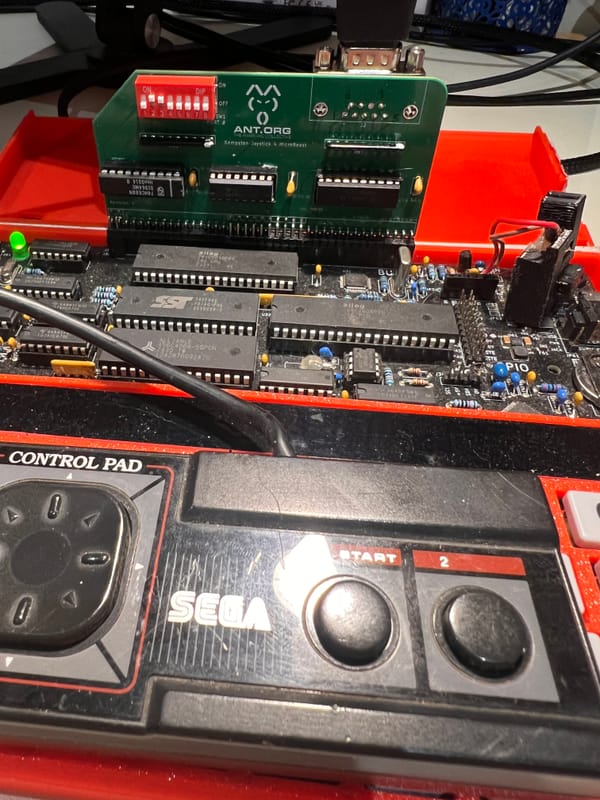
All being well, you should see this:
Things you can try
- Try displaying a different 5 character string.
- What happens if you try to display a longer string?
- How can you adapt the code to display a longer string? What limitations do you encounter?
End of Part Three
That's it for Part Three - nice and quick this time!
Next time, in Your name in lights! (Part 4) we'll let you type in any string you like (within reason) and have that displayed on the LEDs!
Comments