Your name in lights! (Part 2) (BBC BASIC)


In Your name in lights! we got to grips with the 'Beast and its hardware and got comfortable transferring disk images onto the 'Beast using Y-Modem.
We're going to be building on that foundation here, so if you skipped Part One or are still a little shaky on the fundamentals you might want to go back and read it again.
To move forward, I'm going to assume that you've got SLIDE.COM on the B: drive of your 'Beast, and that you have the corresponding PC utility installed somewhere in your PATH on your development PC. Refer to the SLIDE README if you need more help with that.
Set up
First things first: clone the Beast User repository on to your development PC.
We're going to start in the scrolltext/bbc_basic/leds folder.
Background info
I already briefly mentioned the LEDs on the 'Beast. To recap, there are 24 characters, and each character is made of 15 different LEDs that we can light individually, to make a symbol that we recognize as a letter, numeral, or punctuation.
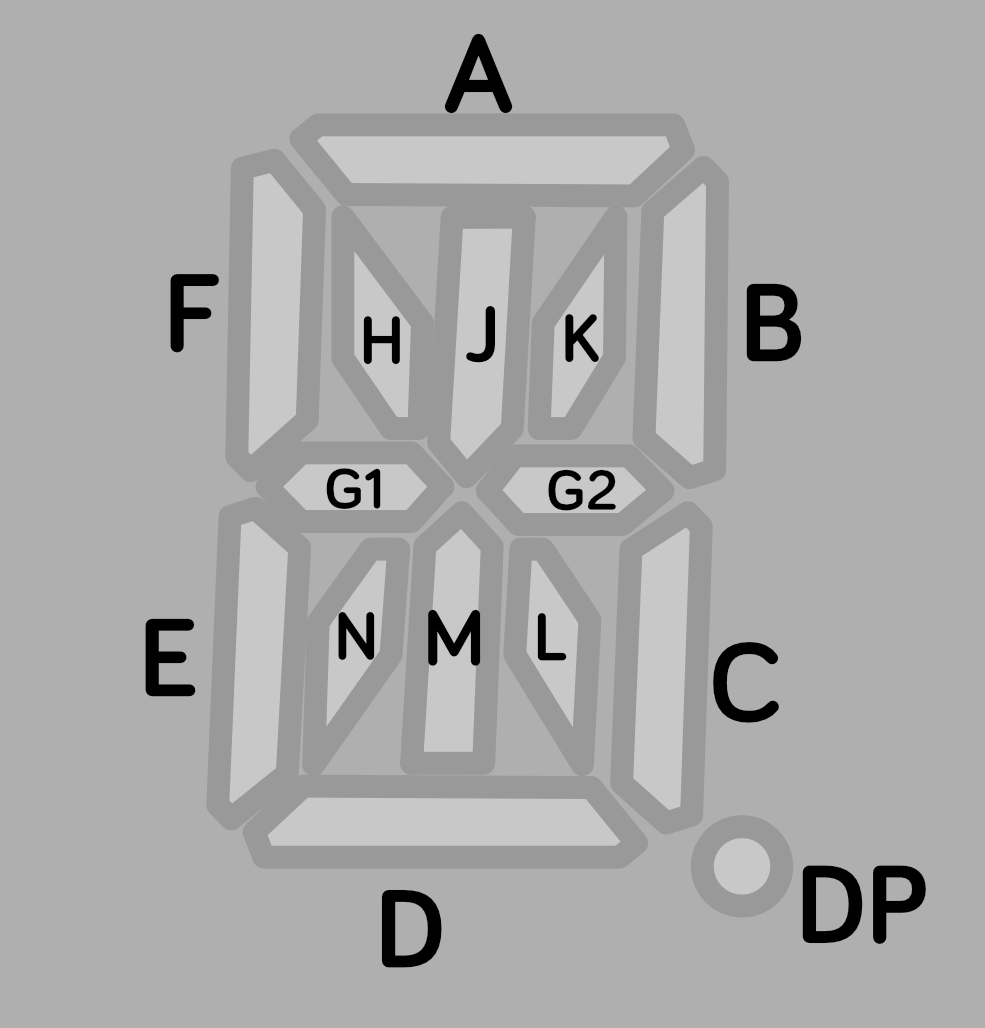
In other words there are 15 different LEDs that are either on or off for each of the 24 characters. So we can represent one character as a 16-bit word where each bit controls an LED, and we can represent the whole character array as a table or list of 24 16-bit words.
Here are the bit values that will activate each LED segment:
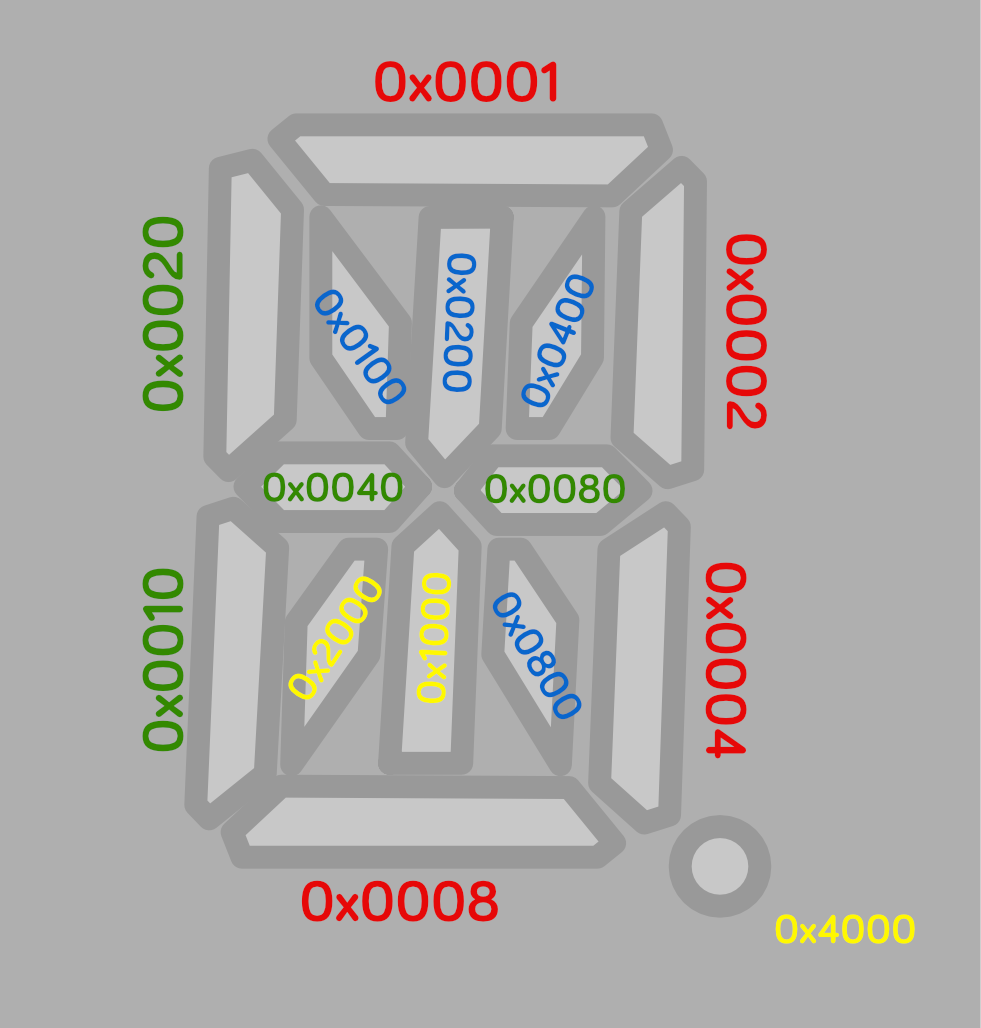
To light multiple segments, we combine their bits. This is technically an OR operation, but you can think of it as simply adding them altogether to come up with a number that represents the symbol we want.
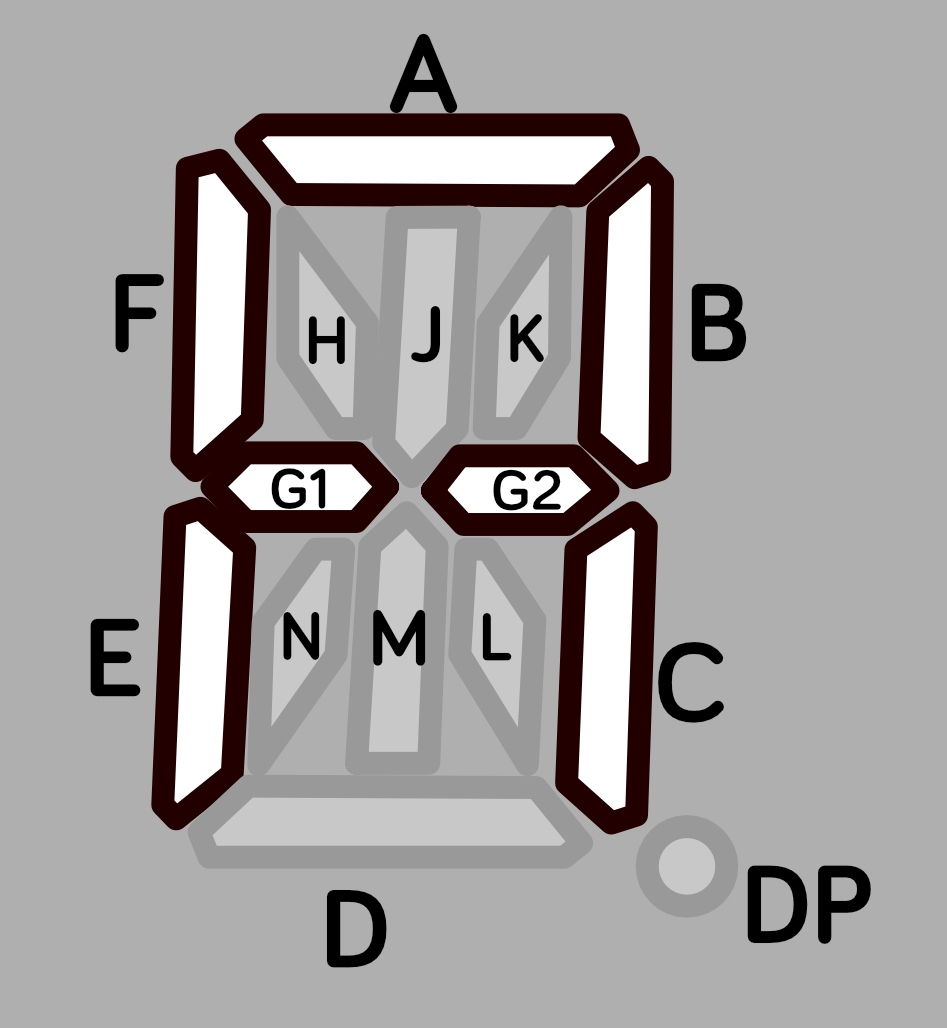
You're not limited to the standard boring ANSI fare: you can have any symbol that you can dream up, subject to the (rather restrictive!) geometry of the LEDs themselves.
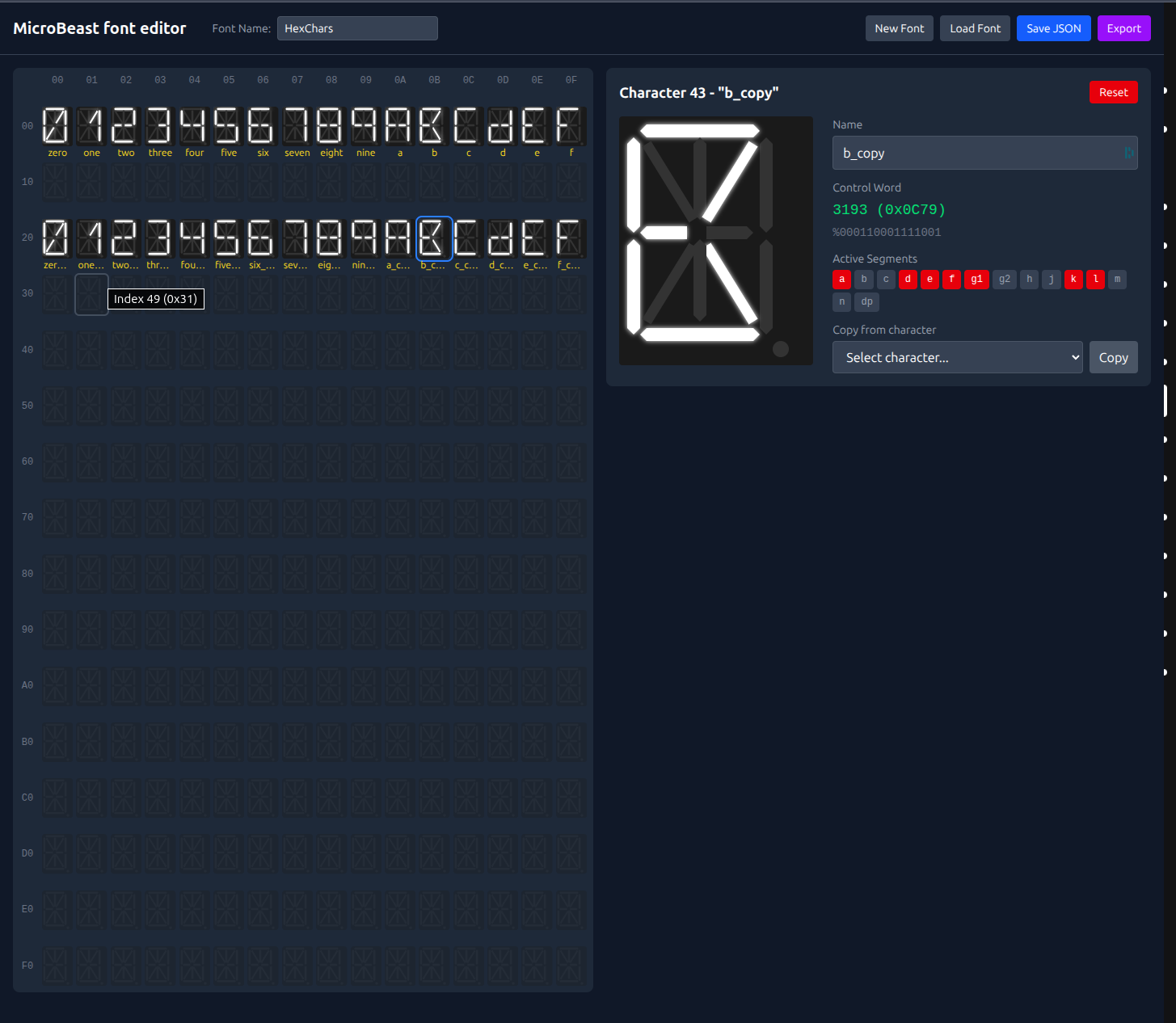
You can use my MicroBeast Font Editor to play with this ( instructions ) and see how symbols get turned into 16-bit words. If you come up with something that really tickles your fancy, make a note of its "control word" and use that in the examples that follow instead of the default value I'll be giving you.
Once we know the value for our symbol, what do we do with it? How do we get it on the display? Luckily, the designers of your 'Beast have got your back: they provide a BIOS call that takes a word describing the symbol and a column number as parameters, and does a lot of complicated hardware manipulation behind the scenes. We can treat it as a "black box": we know precisely what it does, and we know what inputs (parameters) it needs to accomplish this, but we don't care how it does it.

This is a machine code routine, so to pass parameters (the symbol we want and the column we want it in) we have to set up some z80 registers to contain those values. One of these is called HL - it contains the 16-bit word that describes the symbol - and the other is called A - it contains the column number, a value between 0 and 23 (because there are 24 columns on the LED display, and we start counting at 0).
Don't worry about what registers are, and why some of them have single character names and some of them have two character names - we'll get into that later. For now, just think of them as variables you can set, before calling the BIOS routine (think of it as a procedure or a function or even a GOSUB that does the work). So we're essentially saying:
- set
HLto the 16-bit word that describes the symbol we want - set A to the column that we want to show it in
- make the processor jump to
MBB_WRITE_LED(0xFDD6) to do the work
This kind of encapsulation and re-use is fundamental to pretty much all forms of software development; often described as the DRY principal: Don't Repeat Yourself. (The opposite, of course, is Write Everything Twice...)
BBC BASIC Z80
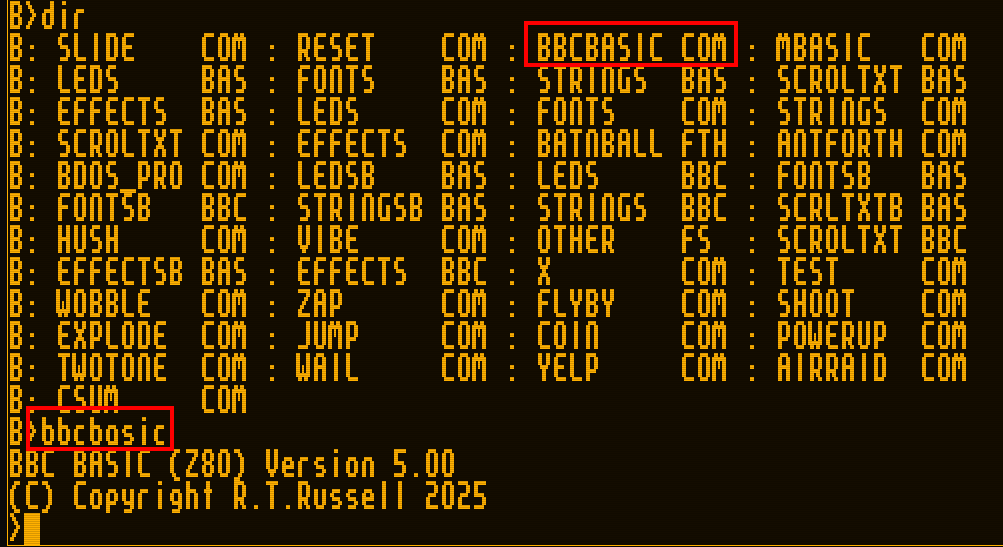
The disk image I've provided contains BBCBASIC.COM Which is Russel T. Davis' BBC BASIC Z80 v5.0, from 2025! We can go ahead and type BBCBASIC to start it up:
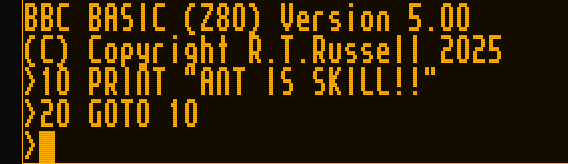
You can have a little play, if you like:
Type RUN to execute the program (and hit Escape when you want it to stop):
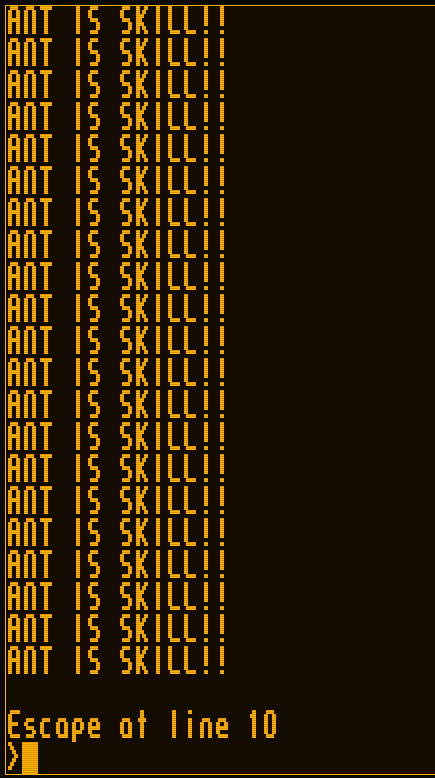
There was a period in the 1980s when every display in every computer shop in Bedford town centre looked exactly like this!
By the way, to get out of BASIC and get back to CP/M, type *QUIT and hit ENTER.
Calling BIOS routines from BASIC
You might imagine that calling the BIOS routine we're interested in is as simple as setting up our HL and A variables and using some sort of keyword that means "call some machine code at an address I specify":
REM this is not real code
HL = 65535
A = 0
CALL 0xFDD6
and BBC Basic does indeed provide a CALL keyword that does exactly this, with a couple of caveats:
- The registers
A,B,C,D,E,F,HandLare initialised to the least significant words of the integer variablesA%,B%,C%,D%,E%,F%,H%andL%respectively. - Hex values are preceded with
&in BBC BASIC, so&FDD6.
So unlike Microsoft BASIC, we don't need to write any special machine code routines to act as a stub - we can set all the z80 registers directly.
This makes the examples vastly simpler and easier to understand with all that added clutter.
In lines 120 to 140 of LEDS.BBC we're looping over columns 20 to 23 (that's the four right-most ones on the display) and writing our funky symbol to them. PROCled(bm%, col%) is a procedure (named subroutine) that wraps our machine code call, which is line 230. The CALL &ffD6 is the bit that calls the BIOS routine directly: the procedure already setup the A%, H%, and L% variables, which will get passed to the A, H, and L registers.
Let's give it a go!
Running our first BASIC program
Fire up your 'Beast and SLIDE LEDS.BBC over to your B: drive. Make sure you're "logged in" to the A: drive (that's CP/M jargon that means your prompt says A> - if it doesn't type A: and hit ENTER). Type BBCBASIC to start the BASIC interpreter, and then type LOAD "B:LEDS" to load the demo program. You can type LIST to examine it if you like, and when you're ready type RUN and hit ENTER:
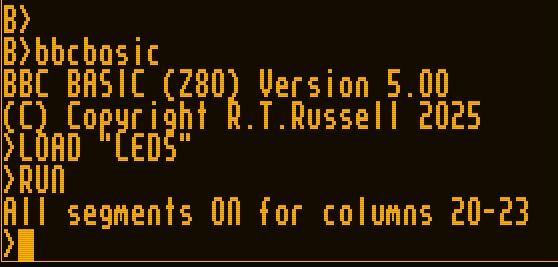
You should be rewarded with this splendid display:
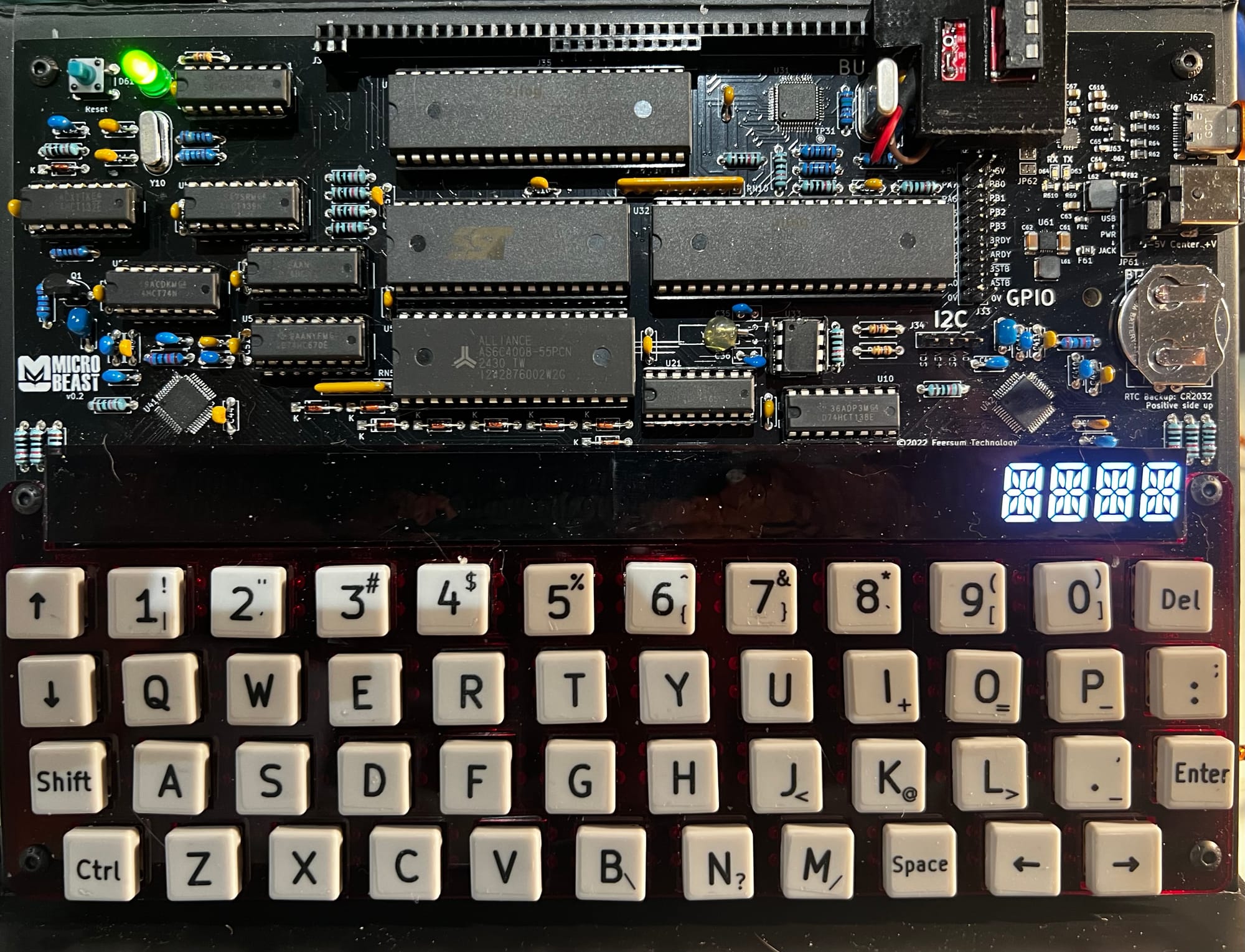
Things you can try
Try changing the code-word to display a different symbol. You can replace line 130 by typing e.g. 130 PROCled(..., col%) and inserting your new value. Type RUN to try it.
Try writing to all the columns, from column 0 on the left to column 23 on the right. Be aware that the console output might over-right the leftmost columns (that's why I chose the rightmost ones for my demo!).
Try writing a different symbol to each column.
When you're done, remember that *QUIT exits BBC Basic and returns you to CP/M.
End of Part Two
So far so good - we learned a lot of stuff about BBC Basic and actually managed to write some code and run it on the 'Beast! But funky symbols can only keep us amused for so long.
Join me in Your name in lights! (Part 3) where we can start to put recognisable characters on the display!
Comments