We're going to be building on that foundation here, so if you skipped earlier parts or are still a little shaky on the fundamentals you might want to go back and read them again.
To move forward, I'm going to assume that you've got SLIDE.COM on the B: drive of your 'Beast, and that you have the corresponding PC utility installed somewhere in your PATH on your development PC. Refer to the SLIDE README if you need more help with that.
I'm also going to assume that you have BBCBASIC.COM on your B drive.
We're going to start in the scrolltext/bbc_basic/scrolltext folder.
Background info
This time around, we're going to add the ability to display strings that are longer than our display is wide (24 characters). And we'll do that by making a "scroll text" - only a portion of the message is visible at a given time. By updating which portion we display ever so slightly on a regular basis, we can give the illusion of the text scrolling by.
Imagine for a moment, that you are wearing a welding helmet and contemplating God's final message to his creation. You can't see the whole message in one go, you'd have to physically turn your head to read it (or move the message of course, but it's not so easy to move divine messages in 30 foot letters made of fire).
One way we could do this is to start by displaying our string at column 0, and then on the next iteration display it at column -1, then -2 etc. etc. The text would then appear to be moving to the left:
This sort of approach is common in many graphics systems, but the 'Beast will not take kindly to negative column values. Also, it is not a very efficient technique: if the string is very long, we will spend a lot of time trying to render characters that cannot be visible.
A better approach is to slide the display along the string:
So we start by displaying the first 24 characters of the string starting at the first (index 0), but on the next iteration we display 24 characters starting from the second position in the string (index 1) and so on. We could do some complicated maths to deal with what happens when we get to the end of the string, but it's easier to just stick 24 spaces on the end. In fact, we'll stick another 24 on the front so the string appears to enter from the right hand edge.
Here's the code we'll be running this time:
10 REM === MicroBeast LED Demo - Step 4: Scrolling Text (BBC BASIC) ===
20 REM Prompts for a string and scrolls it continuously across the
30 REM 24-character LED display. The text is padded with spaces so it
40 REM scrolls in from the right and out to the left.
50 REM
60 REM --- Load font data into an array (ASCII 32-126) ---
70 DIM font%(94)
80 FOR idx% = 0 TO 94 : READ font%(idx%) : NEXT
90 REM
100 REM --- Get user input ---
110 INPUT "Enter scroll text: " text$
120 REM
130 REM --- Build padded buffer: 24 spaces + text + 24 spaces ---
140 pad$ = "                        " : REM 24 spaces
150 buf$ = pad$ + text$ + pad$
160 buflen% = LEN(buf$)
170 REM
180 PRINT "Scrolling... press ESCAPE to stop"
190 offset% = 1 : REM scroll offset (1-based for MID$)
200 REM
210 REPEAT
220   REM Display 24 characters starting at the current offset
230   FOR col% = 0 TO 23
240     ch% = ASC(MID$(buf$, offset% + col%, 1)) - 32
250     IF ch% < 0 OR ch% > 94 THEN ch% = 0
260     PROCled(font%(ch%), col%)
270   NEXT
280   REM Delay for scroll speed (centiseconds); also lets ESCAPE break
290   dummy% = INKEY(8)
300   REM Advance scroll position, wrapping at the end
310   offset% = offset% + 1
320   IF offset% > buflen% - 23 THEN offset% = 1
330 UNTIL FALSE
340 END
350 REM
360 REM --- Write bitmask bm% to LED column col% via MBB_WRITE_LED ---
370 DEF PROCled(bm%, col%)
380 A% = col%
390 L% = bm% MOD 256
400 H% = bm% DIV 256
410 CALL &FDD6
420 ENDPROC
430 REM
440 REM --- Font DATA (ASCII 32-126, 95 entries) ---
450 DATA &0000, &4900, &0202, &12CE, &12ED, &2DE4
460 DATA &0B59, &0200, &0C00, &2100, &3FC0, &12C0
470 DATA &2000, &00C0, &4000, &2400
480 DATA &243F, &0406, &00DB, &008F, &00E6, &0869
490 DATA &00FD, &1401, &00FF, &00EF, &0040, &2200
500 DATA &0C40, &00C8, &2180, &5083
510 DATA &02BB, &00F7, &128F, &0039, &120F, &0079
520 DATA &0071, &00BD, &00F6, &1209, &001E, &0C70
530 DATA &0038, &0536, &0936, &003F
540 DATA &00F3, &083F, &08F3, &00ED, &1201, &003E
550 DATA &2430, &2836, &2D00, &00EE, &2409
560 DATA &0039, &0900, &000F, &2800, &0008
570 DATA &0100, &208C, &0878, &00D8, &208E, &2058
580 DATA &14C0, &048E, &1070, &1000, &2210
590 DATA &1E00, &1200, &10D4, &1050, &00DC
600 DATA &0170, &0486, &0050, &0888, &0078
610 DATA &001C, &2010, &2814, &2D00, &028E
620 DATA &2048, &2149, &1200, &0C89, &24C0
No surprises here. We've essentially got all the same code as last time, but now we've got a loop around our main display routine that changes the offset on each iteration: lines 220-330. The delay in line 290 is just there to slow things down a bit, lest the awesome power of BBC BASIC render our message an illegible blur.
Running the code
You know the drill:
Boot your 'Beast
SLIDE the SCROLLTEXT.BBC file from the repo across to your 'Beast's B drive (you'll need to rename it as SCROLTXT.BBC to fit the CP/M naming convention)
"log in" to the B drive with B:
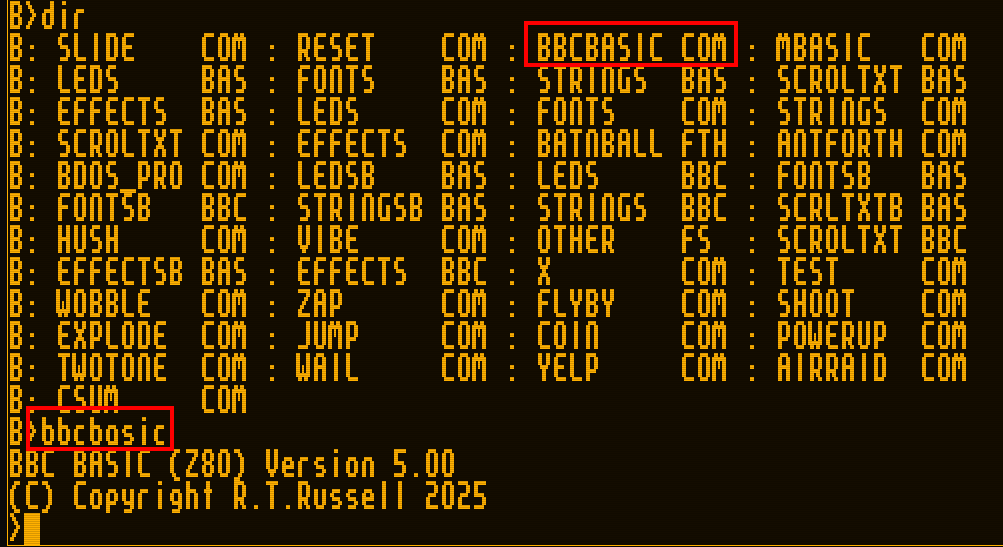
start BBC Basic with BBCBASIC
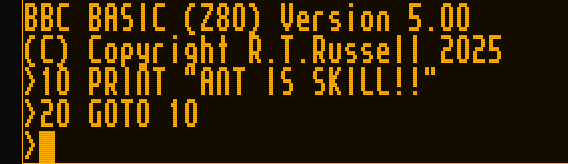
type LOAD "SCROLTXT"
inspect it with LIST
run it with RUN
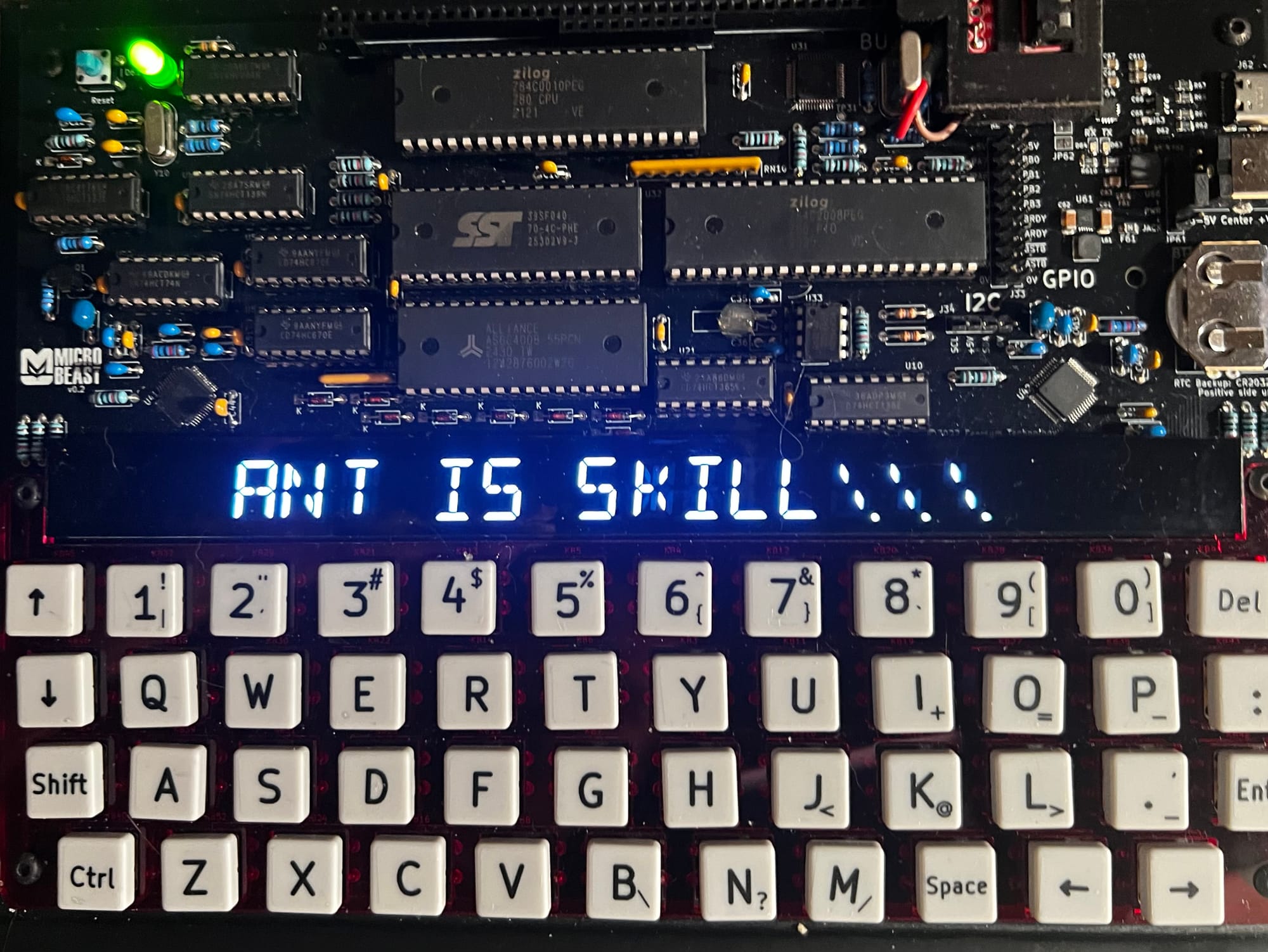
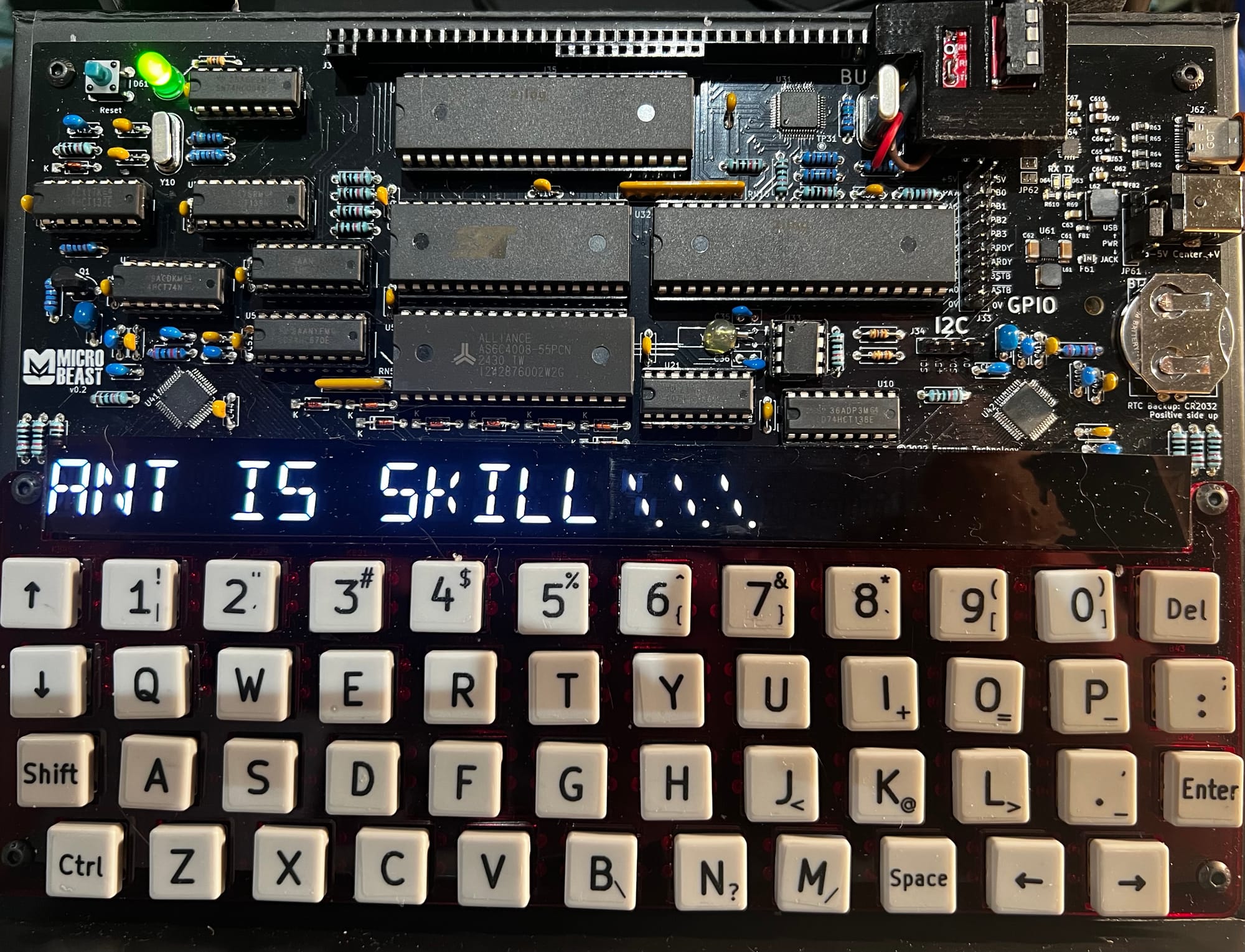
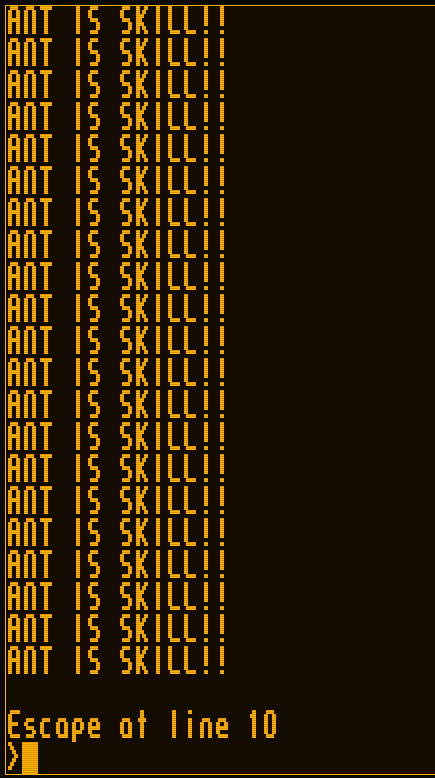
All being well, you should see this (your string might be different):
Things you can try
Try making the delay shorter - what's the fastest it can do?
Try making the string scroll in the opposite direction!
End of Part Five
That's it for Part Five - we built on all the understanding we've developed so far and built a reasonable scrolltext implementation.
In the next part, Your name in lights! (Part 6),we'll wrap up the BASIC section by adding some effects to our scrolltext to make it extra fancy!
microbeast
Your name in lights! (Part 5) (BBC BASIC)
Last time in Your name in lights! (Part 4) , we were able to display arbitrary short strings on the 'Beast's LED displays.
We're going to be building on that foundation here, so if you skipped earlier parts or are still a little shaky on the
We're going to be building on that foundation here, so if you skipped earlier parts or are still a little shaky on the fundamentals you might want to go back and read them again.
To move forward, I'm going to assume that you've got SLIDE.COM on the B: drive of your 'Beast, and that you have the corresponding PC utility installed somewhere in your PATH on your development PC. Refer to the SLIDE README if you need more help with that.
I'm also going to asssume that you have BBCBASIC.COM on your B drive.
We're going to start in the scrolltext/bbc_basic/strings folder.
Background info
This time, we'll modify the code we already have slightly to allow us to display longer messages, and to let us input the string we want to display dynamically, rather than hard-coding it into the source code.
Here's the code we'll be running this time:
10 REM === MicroBeast LED Demo - Step 3: String Display (BBC BASIC) ===
20 REM Prompt the user for a string and display it on the 24-char
30 REM LED display. Each character is converted to its 14-segment
40 REM bitmask via a font lookup.
50 REM
60 REM --- Load font data into an array (ASCII 32-126) ---
70 DIM font%(94)
80 FOR idx% = 0 TO 94 : READ font%(idx%) : NEXT
90 REM
100 REM --- Get user input ---
110 INPUT "Enter text (max 24 chars): " text$
120 IF LEN(text$) > 24 THEN text$ = LEFT$(text$, 24)
130 REM
140 REM --- Display the string, padding the rest with blanks ---
150 FOR col% = 0 TO 23
160   IF col% < LEN(text$) THEN ch% = ASC(MID$(text$, col%+1, 1)) - 32 ELSE ch% = 0
170   IF ch% < 0 OR ch% > 94 THEN ch% = 0
180   PROCled(font%(ch%), col%)
190 NEXT
200 PRINT "Done!"
210 END
220 REM
230 REM --- Write bitmask bm% to LED column col% via MBB_WRITE_LED ---
240 DEF PROCled(bm%, col%)
250 A% = col%
260 L% = bm% MOD 256
270 H% = bm% DIV 256
280 CALL &FDD6
290 ENDPROC
300 REM
310 REM --- Font DATA (ASCII 32-126, 95 entries) ---
320 DATA &0000, &4900, &0202, &12CE, &12ED, &2DE4
330 DATA &0B59, &0200, &0C00, &2100, &3FC0, &12C0
340 DATA &2000, &00C0, &4000, &2400
350 DATA &243F, &0406, &00DB, &008F, &00E6, &0869
360 DATA &00FD, &1401, &00FF, &00EF, &0040, &2200
370 DATA &0C40, &00C8, &2180, &5083
380 DATA &02BB, &00F7, &128F, &0039, &120F, &0079
390 DATA &0071, &00BD, &00F6, &1209, &001E, &0C70
400 DATA &0038, &0536, &0936, &003F
410 DATA &00F3, &083F, &08F3, &00ED, &1201, &003E
420 DATA &2430, &2836, &2D00, &00EE, &2409
430 DATA &0039, &0900, &000F, &2800, &0008
440 DATA &0100, &208C, &0878, &00D8, &208E, &2058
450 DATA &14C0, &048E, &1070, &1000, &2210
460 DATA &1E00, &1200, &10D4, &1050, &00DC
470 DATA &0170, &0486, &0050, &0888, &0078
480 DATA &001C, &2010, &2814, &2D00, &028E
490 DATA &2048, &2149, &1200, &0C89, &24C0
Much of this code should look familiar from last time. We've got the same machine-code stub to call our BIOS routine in lines 240-290, the same font table setup in lines 70-80, and the same (ish) character display routine in lines 150-190.
We've added some code in lines 110-120 to prompt the user for the string to be displayed:
110 INPUT "Enter text (max 24 chars): " text$
120 IF LEN(text$) > 24 THEN text$ = LEFT$(text$, 24)
INPUT is the keyword that causes the prompt to be displayed, and whatever characters you provide are stored in the variable text$ (remember that $ means "string" here).
The second line is a safety check to ensure that our string is no longer than 24 characters, because that's the maximum message size we can display on our 24-character LED display.
There's also some extra chicanery in lines 160-170 that I glossed over earlier that we should now review:
160   IF col% < LEN(text$) THEN ch% = ASC(MID$(text$, col%+1, 1)) - 32 ELSE ch% = 0
170   IF ch% < 0 OR ch% > 94 THEN ch% = 0
col% is our integer "column number" variable counting up from 0 to 23 inclusive. For each column position we extract the relevant character from the string - that's the MID$ keyword in the middle. We use ASC to get the ASCII character code for this character, and we subtract 32 from it, because we don't have font table entries for the first 32 ASCII characters as they're all control codes anyway. The first entry in our font table is the SPACE character, whose ASCII value is 32: so subtracting 32 is an easy way to convert from ASCII code to font-table index.
Line 160 is also guarding against our input string being shorter than the display width (IF col% < LEN(text$)) - if we run out of characters in text$ before we get to the end of the display we do ELSE ch% = 0 which has the effect of using entry 0 in our font table (a blank SPACE character).
Finally line 170 guards against tricksy character values that our outside the bounds of our font table: if that happens, we'll swap those out for a SPACE character too.
Running the code
You know the drill:
Boot your 'Beast
SLIDE the STRINGS.BBC file from the repo across to your 'Beast's B drive
"log in" to the A drive with A:
start BBC Basic with BBCBASIC
type LOAD "STRINGS"
inspect it with LIST
run it with RUN
All being well, you should see this (your string might be different):
Things you can try
Try displaying a string that's longer than the display
Try displaying characters that aren't in the font table
How could you adapt the code to display "User Defined Graphics" (UDGs) ? Are there are characters you can swap out in the existing font table?
What about if you wanted to extend the existing font table to offer UDGs?
End of Part Four
That's it for Part Four - another relatively short one. Next time, in Your name in lights! (Part 5) we'll look at how we can display strings that are longer than the available display width, and introduce the ancient and venerable art of ScrollTexts...
microbeast
Your name in lights! (Part 4) (BBC BASIC)
Last time, in Your name in lights! (Part 3) we really got into our stride and managed to write short (very short!) messages of our choosing to the LED display.
We're going to be building on that foundation here, so if you skipped earlier parts or are still
We're going to be building on that foundation here, so if you skipped Part One or Part Two or are still a little shaky on the fundamentals you might want to go back and read them again.
To move forward, I'm going to assume that you've got SLIDE.COM on the B: drive of your 'Beast, and that you have the corresponding PC utility installed somewhere in your PATH on your development PC. Refer to the SLIDE README if you need more help with that.
I'm also going to assume that you have BBCBASIC.COM on your B drive.
We're going to start in the scrolltext/bbc_basic/fonts folder.
Background info
This time, we'll see if we can adopt that classic time-honoured writing system: the Latin alphabet!
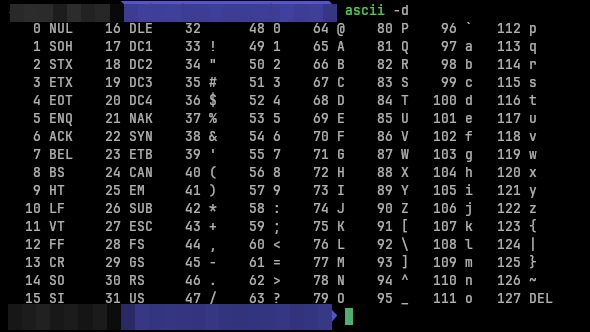
All of the standard characters on the 'Beast can be represented by an ASCII code: for example the letter A is character number 65 (0x41). It would be convenient to use these values when we're trying to write every-day text to our display, and only resort to codewords when we want a Space Invader, or something.
💡
Incidentally, the ASCII standard is a supremely elegant bit of design: read this post if you want to know more!
You might guess from the Font Editor I've shown you previously that this involves creating a "Font" which is simply a big table of codewords for every letter, digit or punctuation mark we wish to use, systematically organised in such a way that we can convert from ASCII codes to LED code-words.
You might also be thinking "Hold on, the 'Beast already displays characters perfectly well, surely someone has already done this work?" - and you'd be right. The 'Beast's designers have already provided a "font" that covers the 94 most exciting characters in the ASCII standard. (ASCII only defines 128 characters in total, and some of those are special control characters that can't be printed to the screen anyway).
Unfortunately, the BIOS doesn't provide a convenient way to access this font table from code running on the `Beast. We could figure out its address in the particular firmware we're using, but such an approach is brittle because there are no guarantees that the next version of the firmware will have the font table at exactly the same address, and our code would break.
The alternative is to define our own font table. Rather than mess about defining 94 characters in the Font Editor, we're just going to copy the info from the MicroBeast font table into our own code.
Here's the code we'll be running this time:
10 REM === MicroBeast LED Demo - Step 2: Font Rendering (BBC BASIC) ===
20 REM Display "HELLO" on the last 5 LED positions (columns 19-23)
30 REM using font bitmask data for the 14-segment displays.
40 REM
50 REM Each character has a 16-bit bitmask:
60 REM   Low byte  = outer segments (a,b,c,d,e,f,g1,g2)
70 REM   High byte = inner/diagonal segments (h,j,k,l,m,n)
80 REM
90 REM The font table is indexed from ASCII 32 (space) onwards:
100 REM   index = ASC(char) - 32,  bitmask = font%(index)
110 REM
120 REM --- Load font data into an array (ASCII 32-126, 95 entries) ---
130 DIM font%(94)
140 FOR idx% = 0 TO 94 : READ font%(idx%) : NEXT
150 REM
160 REM --- Display "HELLO" on columns 19-23 ---
170 text$ = "HELLO"
180 FOR pos% = 1 TO 5
190   ch% = ASC(MID$(text$, pos%, 1)) - 32
200   PROCled(font%(ch%), 18 + pos%)
210 NEXT
220 PRINT "Displayed HELLO on columns 19-23"
230 END
240 REM
250 REM --- Write bitmask bm% to LED column col% via MBB_WRITE_LED ---
260 DEF PROCled(bm%, col%)
270 A% = col%
280 L% = bm% MOD 256
290 H% = bm% DIV 256
300 CALL &FDD6
310 ENDPROC
320 REM
330 REM --- Font DATA (ASCII 32-126, 95 entries) ---
340 REM Each value is a 16-bit bitmask for the 14-segment display
350 REM
360 DATA &0000, &4900, &0202, &12CE, &12ED, &2DE4
370 DATA &0B59, &0200, &0C00, &2100, &3FC0, &12C0
380 DATA &2000, &00C0, &4000, &2400
390 DATA &243F, &0406, &00DB, &008F, &00E6, &0869
400 DATA &00FD, &1401, &00FF, &00EF, &0040, &2200
410 DATA &0C40, &00C8, &2180, &5083
420 DATA &02BB, &00F7, &128F, &0039, &120F, &0079
430 DATA &0071, &00BD, &00F6, &1209, &001E, &0C70
440 DATA &0038, &0536, &0936, &003F
450 DATA &00F3, &083F, &08F3, &00ED, &1201, &003E
460 DATA &2430, &2836, &2D00, &00EE, &2409
470 DATA &0039, &0900, &000F, &2800, &0008
480 DATA &0100, &208C, &0878, &00D8, &208E, &2058
490 DATA &14C0, &048E, &1070, &1000, &2210
500 DATA &1E00, &1200, &10D4, &1050, &00DC
510 DATA &0170, &0486, &0050, &0888, &0078
520 DATA &001C, &2010, &2814, &2D00, &028E
530 DATA &2048, &2149, &1200, &0C89, &24C0
The aim this time around is to write the word "HELLO" in the last 5 characters of the display. We won't be writing code-words either this time: we'll use ASCII characters.
You can see in line 170:
170 text$ = "HELLO"
The $ suffix means "this variable is a string", and a "string" is a sequence of ASCII characters. It's more convenient than writing out 72, 69, 76, 76, 79, but is otherwise exactly equivalent (bar some sneaky extra information that is stored to remember how long the string is).
In line 130, we have this odd looking line:
130 DIM font%(94)
This means that we're "DIMensioning" (allocating) an "array" (list or table) of 94 integers (because of the %), and we want to call this table font% for "Font Table".
In line 140 you can see where we're setting up values to go in to that table. We loop around 94 times and for each character we're performing:
140 FOR idx% = 0 TO 94 : READ font%(idx%) : NEXT
so as I% goes from 0 to 94 we'll first read a value into font%(0) (the first slot) then the next value into font%(1) and so on. That READ statement gets its data from the DATA statements starting at line 360.
The font data exactly matches the MicroBeast firmware file I showed you earlier - the hexadecimal numbers are just formatted in a slightly different way.
Running the code
We can speed through this now, as you're an old hand at running BASIC programs on the 'Beast. Try this:
Boot your 'Beast
SLIDE the FONTS.BAS file from the repo across to your 'Beast's B drive
"log in" to the A drive with A:
start BBC Basic with BBCBASIC
type LOAD "FONTS"
inspect it with LIST
run it with RUN
All being well, you should see this:
Things you can try
Try displaying a different 5 character string.
What happens if you try to display a longer string?
How can you adapt the code to display a longer string? What limitations do you encounter?
End of Part Three
That's it for Part Three - nice and quick this time!
Next time, in Your name in lights! (Part 4) we'll let you type in any string you like (within reason) and have that displayed on the LEDs!
microbeast
Your name in lights! (Part 3) (BBC BASIC)
Last time in Your name in lights! (Part 2) , we got to grips with BBC Basic and managed to emit some weird runes onto our LED display.
We're going to be building on that foundation here, so if you skipped Part One or Part Two or are still
In Your name in lights! we got to grips with the 'Beast and its hardware and got comfortable transferring disk images onto the 'Beast using Y-Modem.
We're going to be building on that foundation here, so if you skipped Part One or are still a little shaky on the fundamentals you might want to go back and read it again.
To move forward, I'm going to assume that you've got SLIDE.COM on the B: drive of your 'Beast, and that you have the corresponding PC utility installed somewhere in your PATH on your development PC. Refer to the SLIDE README if you need more help with that.
We're going to start in the scrolltext/bbc_basic/leds folder.
Background info
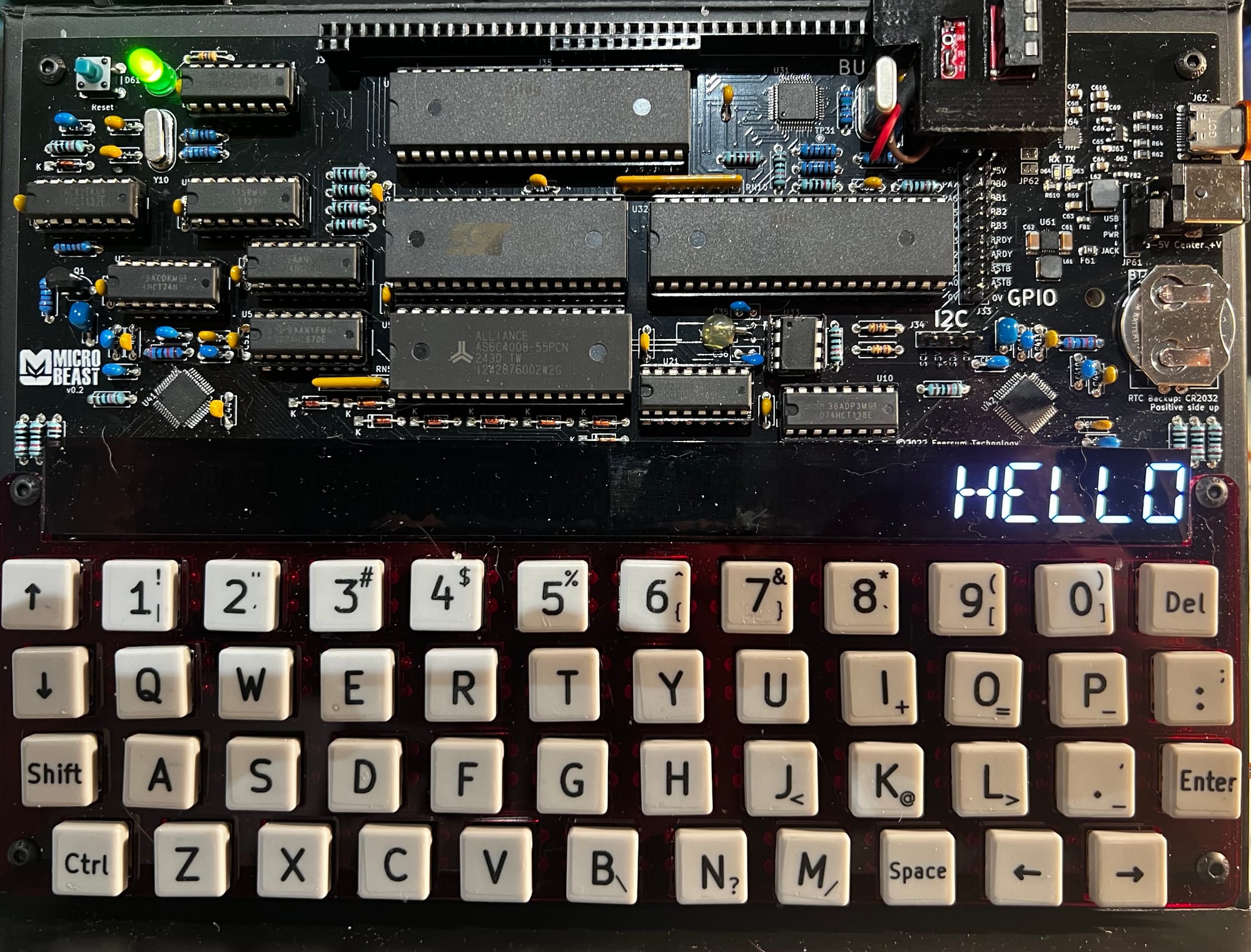
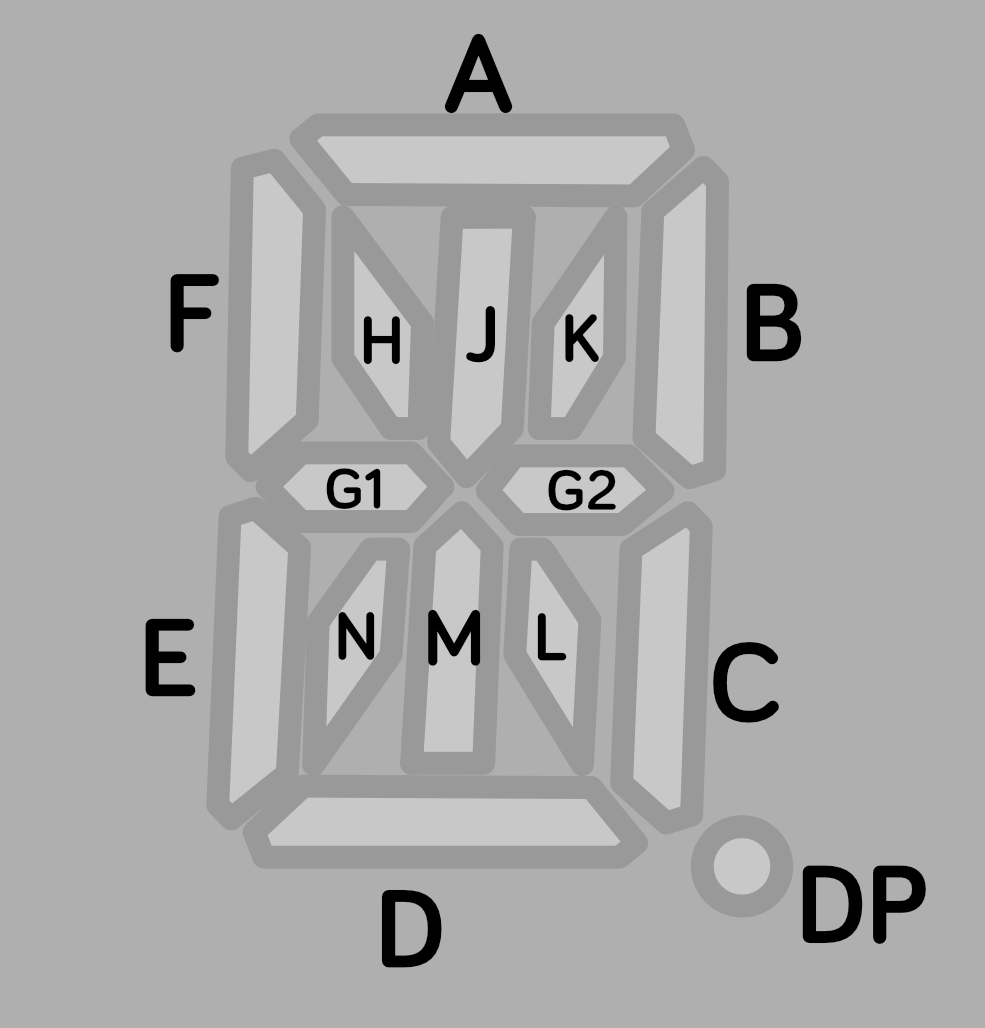
I already briefly mentioned the LEDs on the 'Beast. To recap, there are 24 characters, and each character is made of 15 different LEDs that we can light individually, to make a symbol that we recognize as a letter, numeral, or punctuation.
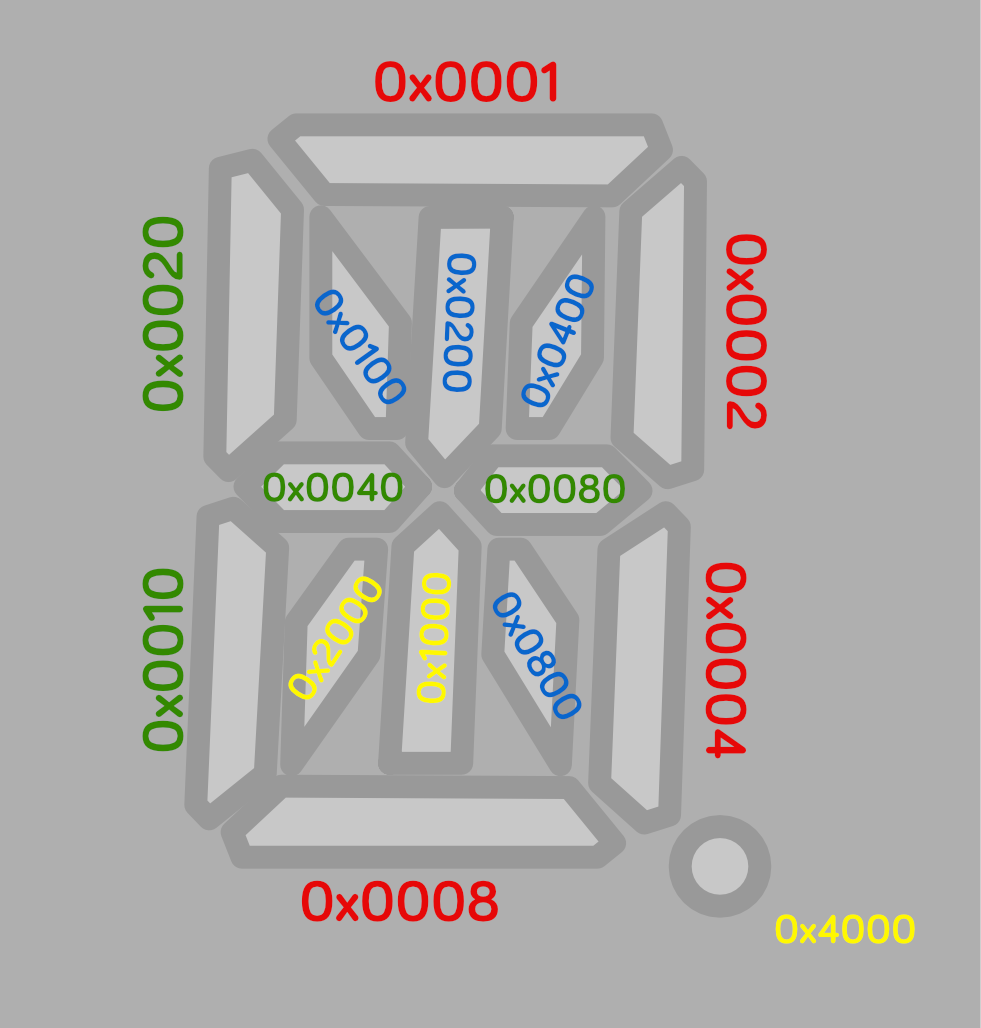
In other words there are 15 different LEDs that are either on or off for each of the 24 characters. So we can represent one character as a 16-bit word where each bit controls an LED, and we can represent the whole character array as a table or list of 24 16-bit words.
Here are the bit values that will activate each LED segment:
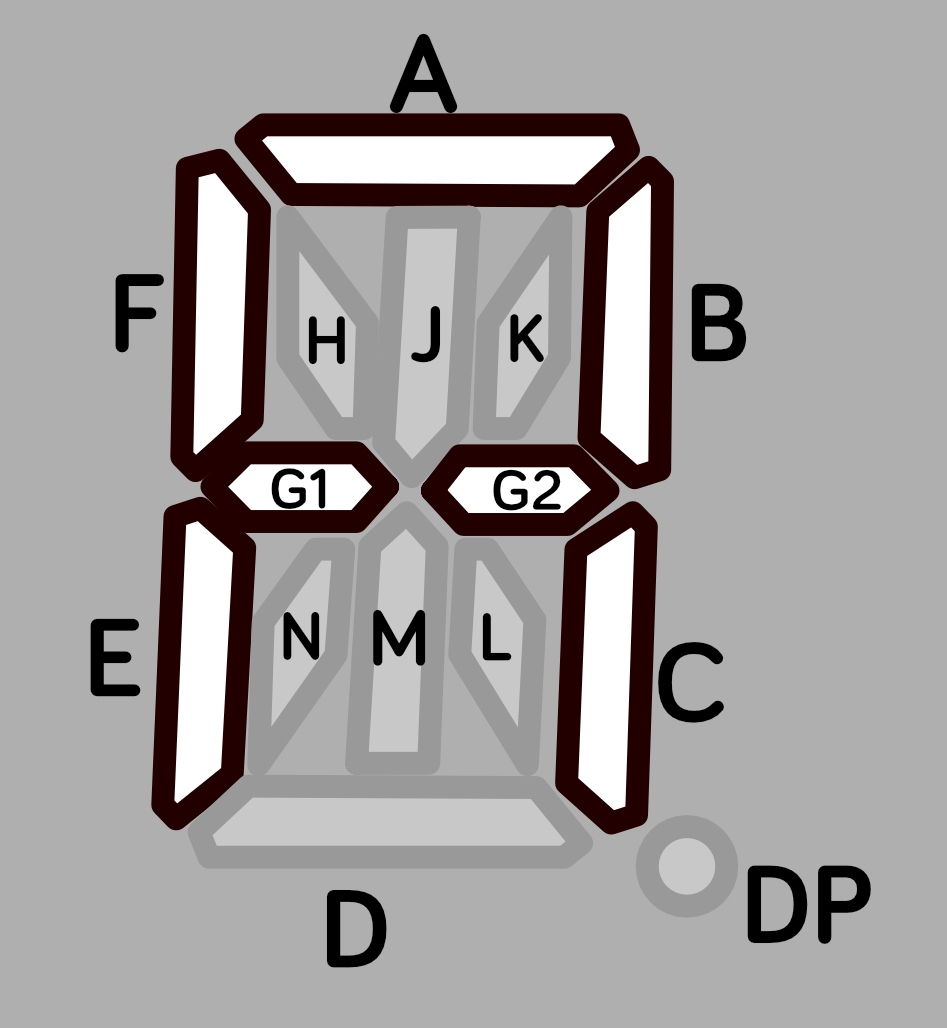
To light multiple segments, we combine their bits. This is technically an OR operation, but you can think of it as simply adding them altogether to come up with a number that represents the symbol we want.
You're not limited to the standard boring ANSI fare: you can have any symbol that you can dream up, subject to the (rather restrictive!) geometry of the LEDs themselves.
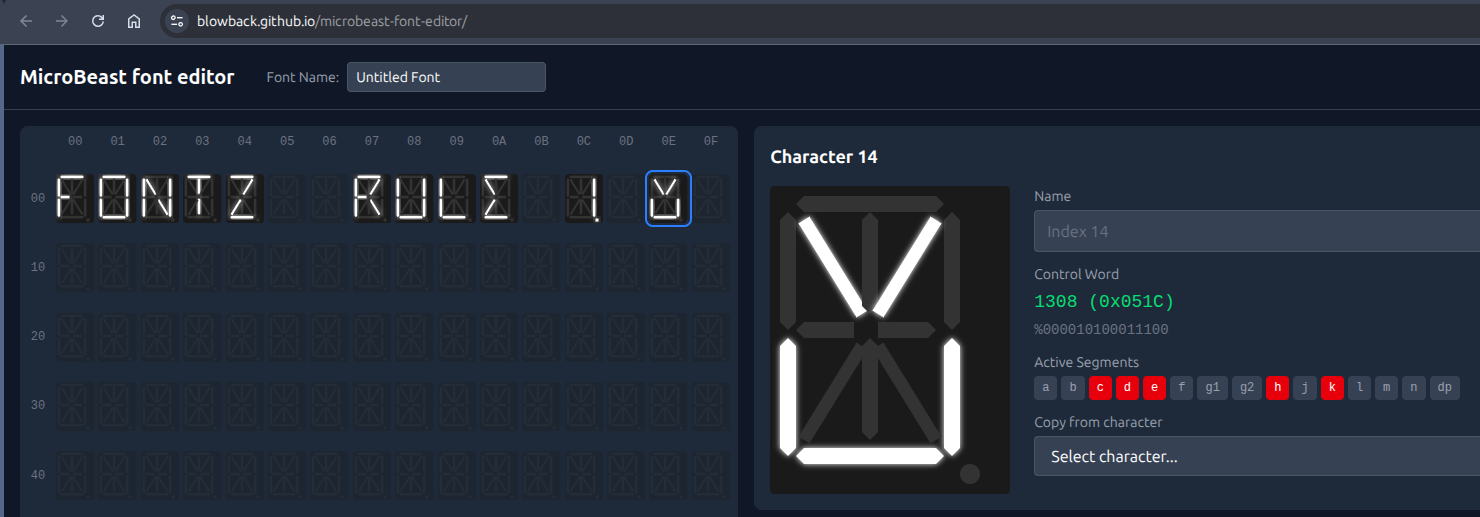
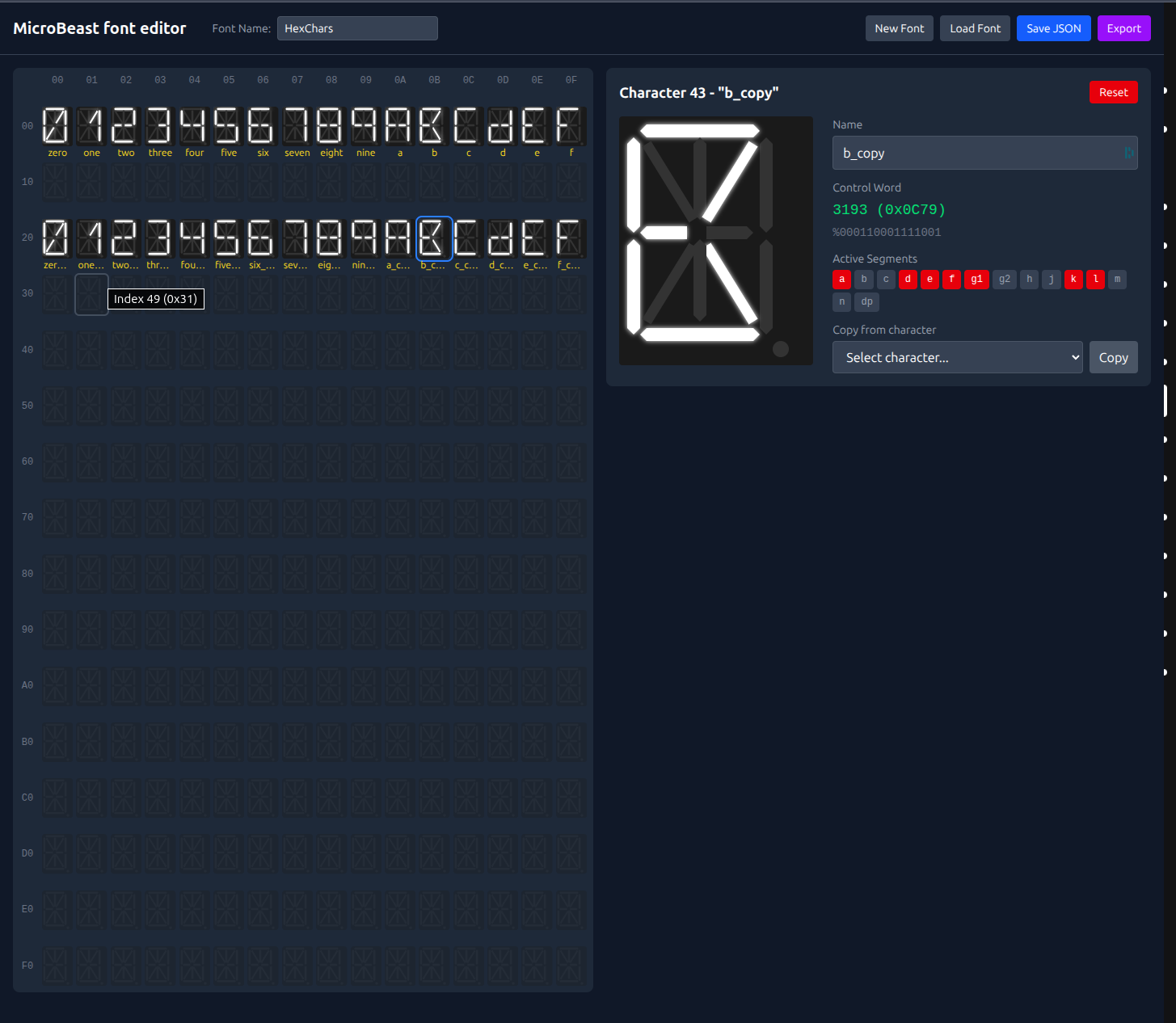
You can use my MicroBeast Font Editor to play with this ( instructions ) and see how symbols get turned into 16-bit words. If you come up with something that really tickles your fancy, make a note of its "control word" and use that in the examples that follow instead of the default value I'll be giving you.
Once we know the value for our symbol, what do we do with it? How do we get it on the display? Luckily, the designers of your 'Beast have got your back: they provide a BIOS call that takes a word describing the symbol and a column number as parameters, and does a lot of complicated hardware manipulation behind the scenes. We can treat it as a "black box": we know precisely what it does, and we know what inputs (parameters) it needs to accomplish this, but we don't care how it does it.
This is a machine code routine, so to pass parameters (the symbol we want and the column we want it in) we have to set up some z80 registers to contain those values. One of these is called HL - it contains the 16-bit word that describes the symbol - and the other is called A - it contains the column number, a value between 0 and 23 (because there are 24 columns on the LED display, and we start counting at 0).
Don't worry about what registers are, and why some of them have single character names and some of them have two character names - we'll get into that later. For now, just think of them as variables you can set, before calling the BIOS routine (think of it as a procedure or a function or even a GOSUB that does the work). So we're essentially saying:
set HL to the 16-bit word that describes the symbol we want
set A to the column that we want to show it in
make the processor jump to MBB_WRITE_LED (0xFDD6) to do the work
This kind of encapsulation and re-use is fundamental to pretty much all forms of software development; often described as the DRY principal: Don't Repeat Yourself. (The opposite, of course, is Write Everything Twice...)
BBC BASIC Z80
The disk image I've provided contains BBCBASIC.COM Which is Russel T. Davis' BBC BASIC Z80 v5.0, from 2025! We can go ahead and type BBCBASIC to start it up:
You can have a little play, if you like:
Type RUN to execute the program (and hit Escape when you want it to stop):
There was a period in the 1980s when every display in every computer shop in Bedford town centre looked exactly like this!
By the way, to get out of BASIC and get back to CP/M, type *QUIT and hit ENTER.
Calling BIOS routines from BASIC
You might imagine that calling the BIOS routine we're interested in is as simple as setting up our HL and A variables and using some sort of keyword that means "call some machine code at an address I specify":
REM this is not real code
HL = 65535
A = 0
CALL 0xFDD6
and BBC Basic does indeed provide a CALL keyword that does exactly this, with a couple of caveats:
The registers A, B, C, D, E, F, H and L are initialised to the least significant words of the integer variables A%, B%, C%, D%, E%, F%, H% and L% respectively.
Hex values are preceded with & in BBC BASIC, so &FDD6.
So unlike Microsoft BASIC, we don't need to write any special machine code routines to act as a stub - we can set all the z80 registers directly.
This makes the examples vastly simpler and easier to understand with all that added clutter.
In lines 120 to 140 of LEDS.BBC we're looping over columns 20 to 23 (that's the four right-most ones on the display) and writing our funky symbol to them. PROCled(bm%, col%) is a procedure (named subroutine) that wraps our machine code call, which is line 230. The CALL &ffD6 is the bit that calls the BIOS routine directly: the procedure already setup the A%, H%, and L% variables, which will get passed to the A, H, and L registers.
Let's give it a go!
Running our first BASIC program
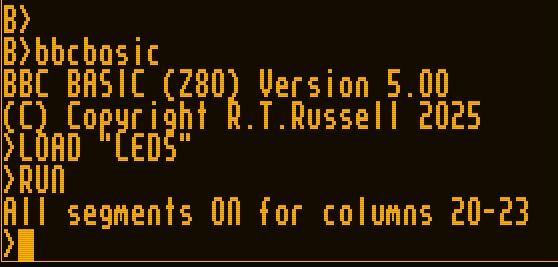
Fire up your 'Beast and SLIDE LEDS.BBC over to your B: drive. Make sure you're "logged in" to the A: drive (that's CP/M jargon that means your prompt says A> - if it doesn't type A: and hit ENTER). Type BBCBASIC to start the BASIC interpreter, and then type LOAD "B:LEDS" to load the demo program. You can type LIST to examine it if you like, and when you're ready type RUN and hit ENTER:
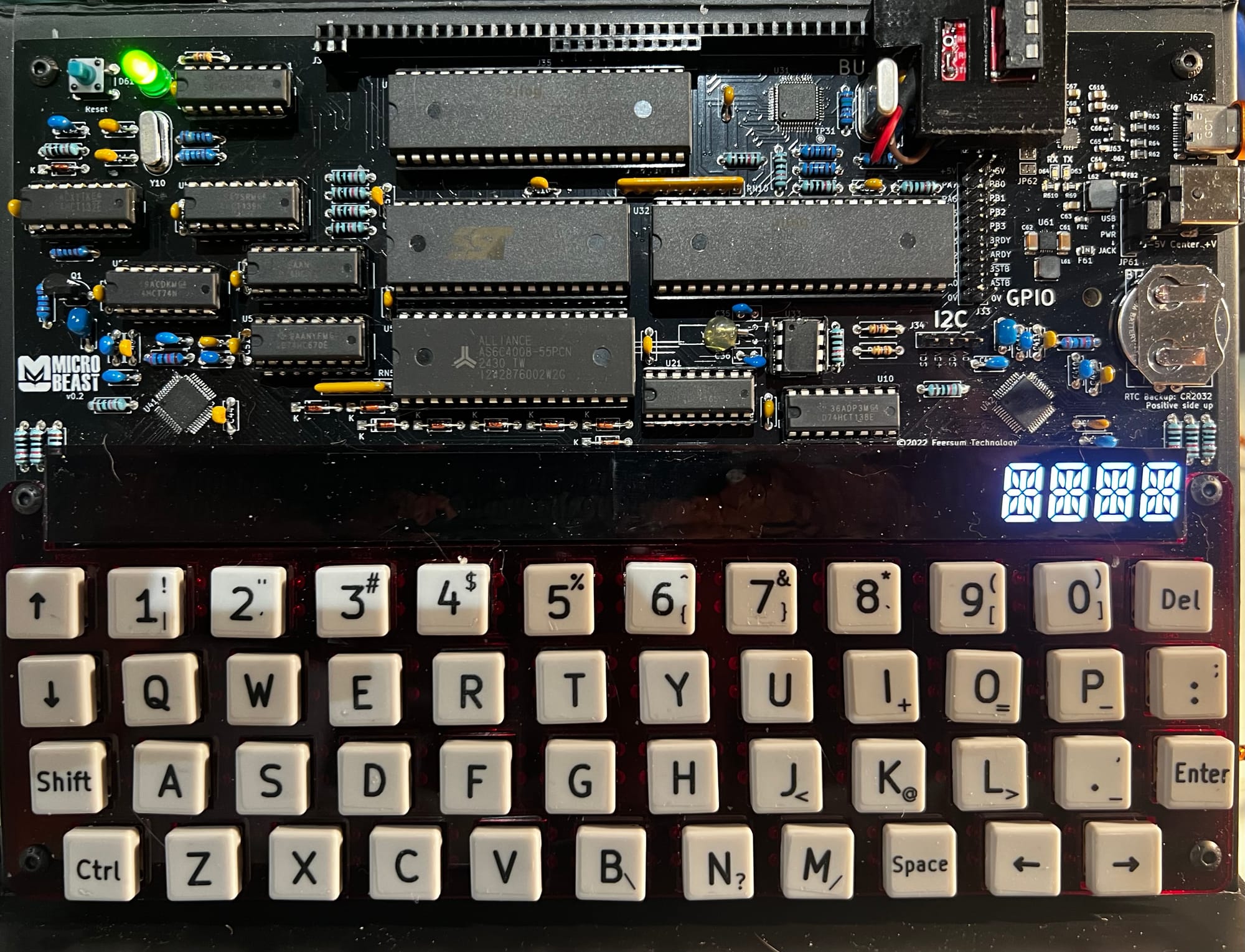
You should be rewarded with this splendid display:
Things you can try
Try changing the code-word to display a different symbol. You can replace line 130 by typing e.g. 130 PROCled(..., col%) and inserting your new value. Type RUN to try it.
Try writing to all the columns, from column 0 on the left to column 23 on the right. Be aware that the console output might over-right the leftmost columns (that's why I chose the rightmost ones for my demo!).
Try writing a different symbol to each column.
When you're done, remember that *QUIT exits BBC Basic and returns you to CP/M.
End of Part Two
So far so good - we learned a lot of stuff about BBC Basic and actually managed to write some code and run it on the 'Beast! But funky symbols can only keep us amused for so long.
In Your name in lights! we got to grips with the 'Beast and its hardware and got comfortable transferring disk images onto the 'Beast using Y-Modem.
We're going to be building on that foundation here, so if you skipped Part One or are still a little
I had a cunning idea about how to utilise all the available memory of the MicroBeast from AntForth. It was quite a simple concept, that I thought would take a few days. It ended up taking a few weeks of solid LLM coding! I'll let Paige, the BMAD technical author agent tell it in her own words...
A Z80 can only see 64 KB at once. The MicroBeast retro computer has 512 KB of RAM. Phase 4 of AntForth was about closing that gap: letting a single Forth session compile words into, and call words across, banks of memory that don't all fit in the processor's address space at the same time.
This post is the story of that phase. It ships as antforth v3.0.7, the first feature release since v2.0. I'll lead with the architecture and the things that went wrong (there were a few good ones), and weave in how we used BMAD — an agentic, spec-driven development method — to orchestrate the whole thing without losing the thread.
If you write Forth or Z80 machine code, there are deeper sidebars for you. If you're here for the "how do you actually build something complex with AI agents" angle, the connective tissue is the BMAD loop, and you can skip the hex.
The idea: a window, not a map
The naive way to use more memory is a flat map — every byte has one address. That's impossible here: 512 KB doesn't fit in 16 bits.
The MicroBeast's MMU solves this the classic 8-bit way. The Z80's 64 KB is divided into four 16 KB slots. Each slot displays one 16 KB page chosen from a 6-bit page space (64 pages × 16 KB = 1 MB of addressable pages, of which 512 KB is real RAM). Change a slot's page register and the same Z80 addresses now read and write different physical memory.
flowchart LR
subgraph Z80["Z80 address space (64 KB)"]
S0["Slot 0 $0000-$3FFF kernel (fixed)"]
S1["Slot 1 $4000-$7FFF kernel (fixed)"]
S2["Slot 2 $8000-$BFFF THE WINDOW"]
S3["Slot 3 $C000-$FFFF stacks/CCP/BDOS/BIOS"]
end
S2 -.maps one of.-> B0["page 0x22 = bank 0"]
S2 -.maps one of.-> B5["page 0x39 = bank 5"]
S2 -.maps one of.-> BN["...up to 29 banks"]
Three slots stay nailed down: the kernel lives in slots 0 and 1, and the stacks, the CP/M residency, BDOS and BIOS live in slot 3. Slot 2 ($8000–$BFFF) is the window. Banking is, fundamentally, the discipline of deciding which page is in the window right now, and making the Forth dictionary behave sanely as that page changes underneath it.
The default configuration gives you 12 banks (192 KB). Sacrifice the virtual console and the RAM disk and you can push to a theoretical 29 banks (464 KB) — all surfaced to the user through one word, BANK!.
5 BANK!        \ map page for bank 5 into the window
: GREET ." hi from bank 5" ;
0 BANK!        \ back to bank 0
GREET          \ still works — prints "hi from bank 5"
That last line is the whole problem in miniature. When you type GREET from bank 0, its code isn't currently mapped in. Something has to notice, swap bank 5 into the window, run it, and swap back — without the user ever knowing. How we got there is the rest of this story.
The architecture: a portal, a triple, and a pile of stubs
Reclaiming memory nobody was using
Banking needs bookkeeping memory that's always visible regardless of which bank is in the window. Phase 4's first real decision (Epic 16) was where to put it. The answer, verified on real hardware: evict the CP/M CCP.
The CCP — the command-line shell — sits at $D400–$DBFF and is reloaded from disk on every warm boot anyway. That's 2 KB of fixed memory we could take for free. Story 16.1 confirmed on silicon that consuming it is safe (warm-boot reloads it), which unlocked everything downstream.
flowchart TD
subgraph Fixed["Fixed memory (always mapped, slot 3)"]
BT["bank-table[] $D400, 29 x 6 bytes"]
AP["active-pages[] $D4AE, 29 bytes"]
ST["descriptor-stub allocator $D4CB-$DBFF = 1845 B = 461 stubs"]
end
subgraph Window["Slot-2 window ($8000-$BFFF)"]
BANK["whichever bank is mapped now"]
end
BT -.tracks per-bank state for.-> BANK
ST -.routes cross-bank calls into.-> BANK
```
The per-bank "triple" — and the one thing it deliberately leaves out
Each bank has its own dictionary growing inside the window. So each bank needs its own copy of three Forth pointers:
HERE — where the next compiled byte goes
LATEST — the most recently defined word
the wordlist head — the start of the search chain
We call this the triple. On BANK!, antforth saves the live triple into bank-table[old] and loads bank-table[new]. Standard stuff.
Sidebar — the invariant that saved us repeatedly. The triple is only those three pointers. The hash bucket array that FIND walks is global and shared — it is not swapped per bank. This sounds like a bug waiting to happen, and reviewers kept "finding" it. It's actually the load-bearing correctness property of the whole design: because the buckets are shared and FIND's page-in is address-conditioned (any address below $8000 is fixed memory, so it's reachable without paging), a word linked into the chain stays findable from every bank. Swaps move the triple; they never touch findability. Internalising this turned a class of scary-looking "triple corruption" review findings into empirically-refutable non-issues — more on that below.
Calling across the gap: descriptor stubs
When you define a word in bank 5, you can't just store its address — that address ($8000-something) means a different physical location depending on what's in the window. So every banked word gets a 4-byte descriptor stub in fixed memory. The stub records "I live in bank 5 at offset X." Executing the word routes through its stub, which maps the right page in, runs the body, and restores the window.
The dictionary pointers that reach these words are 24-bit fat pointers: two bytes of address plus one byte of bank ([addr:2][bank:1]). That one extra byte per link is what lets FIND know whether a hit lives in fixed memory or out in a bank — and it's the single biggest line item in the byte budget (Epic 20, below).
The BMAD loop: how the work actually got made
Here's the connective tissue. antforth isn't built in a freewheeling "chat until it compiles" style. Every increment runs through a structured, auditable loop:
flowchart LR
SP["sprint-status.yaml (source of truth)"] --> CS["create-story (rich, spec'd ACs)"]
CS --> DEV["dev-story (implement + gates)"]
DEV --> CR["adversarial code-review (fresh context, often a different model)"]
CR --> HW["hardware UAT (real MicroBeast)"]
HW --> DONE["status -> done"]
DONE --> RETRO["retrospective (per epic + per phase)"]
RETRO --> SP
A few things make this work at the scale of a 38-story phase:
Stories carry their own context. A create-story pass doesn't just list acceptance criteria — it pre-reads the live source, pins down exact file:line citations, and surfaces findings the dev pass must not re-discover. Several Phase-4 stories opened with five or six "load-bearing findings resolved at draft time." That front-loading is why dev passes land cleanly.
Code review is adversarial and isolated. It runs in a fresh context, frequently on a different model, with an explicit mandate: reviews must find things; an empty review is suspect. This is not ceremony — across Phase 4 it caught a real silent-corruption defect on nearly every pass (a return-stack overflow, an EVALUATE source-id leak, a bucket-scrub bug). The discipline is to refute findings empirically — run the code, watch the pointers — rather than argue.
Hardware is a gate, not an afterthought. Every binary-delta story gets a UAT on a real MicroBeast before it's marked done. Emulators lie (ours modelled a write-only MMU port as readable, which cost us a debugging detour); silicon doesn't.
Retrospectives close the loop. One per epic, one per phase, each checking the previous retro's action items. Phase 4 ran 4-for-4 and 5-for-5 on follow-through in its last two epics — the accountability ledger is the clearest signal the loop is paying rent.
The human (the project lead) stays in the loop at exactly the decision points that matter: mechanism elections, envelope dispositions, tag application. The agents do the reading, drafting, implementing, and reviewing; the human makes the calls that need judgement.
The war stories
No interesting phase is monotonic. Here are the three detours worth remembering.
1. The cross-bank call that wouldn't return cleanly
The first dispatch design (Epic 18) used a sentinel trampoline: a cross-bank call pushed a fake return address that pointed at a little fixed-memory routine, which would restore the window when the word "returned" to it. It worked in the emulator. It was also fragile in a way that took an entire interlude to understand.
The symptom was intermittent hangs. The suspected cause cycled through "kernel too big," "emulator quirk," "trampoline layout." The actual root cause (ADR 19.5) was something else entirely: portal-window dictionary aliasing. When a word's body sat above $8000and a foreign bank was mapped, a dictionary lookup could walk the shared bucket chain through the window and read a foreign page. The trampoline was innocent. The kernel size was never causal.
This earned its own stabilization interlude — Epic 19.5 — rather than being smuggled into a feature epic. That framing decision mattered: the interlude got its own stories, its own retro, and its own release tag (v3.0.4), which is why the whole downstream version mapping shifted by one and Phase 4 ended on v3.0.7 instead of v3.0.6.
2. Replacing the trampoline with nothing
The fix was elegant in the way good 8-bit code often is: make the cost disappear. The sentinel trampoline was replaced by an RST $28 self-dispatching stub. Each banked word's stub is its own dispatcher; the inner interpreter's NEXT doesn't need a discriminator added to it at all.
Sidebar — 0 T-states per NEXT. The headline result (Epic-19.5 DR-2): cross-bank dispatch adds zero cycles to the inner loop. The plain "pop and continue" path is the only path. A BANK! itself costs around 425 T-states (most of it the triple swap and one MMU port write); an intra-bank call costs exactly one extra JP versus a flat build. For a mechanism that lets you address half a megabyte, the steady-state overhead is essentially a rounding error.
3. Stop poking the MMU directly
Midway through, antforth was writing MMU page registers with direct OUT instructions. On real hardware this fought the BIOS, which keeps its own shadow of the page state and re-pages under interrupt. The MMU page ports turned out to be write-only by design — any attempt to read them back floats.
The pivot (the "BIOS-MBB" change) was to stop poking ports and route every page change through two blessed BIOS entry points: MBB_SET_PAGE ($FDDF) and MBB_GET_PAGE ($FDDC). The BIOS keeps the shadow coherent and survives interrupts. This is the kind of correction that only shows up on silicon, and it's the reason the hardware-UAT gate is non-negotiable.
What we ended up with
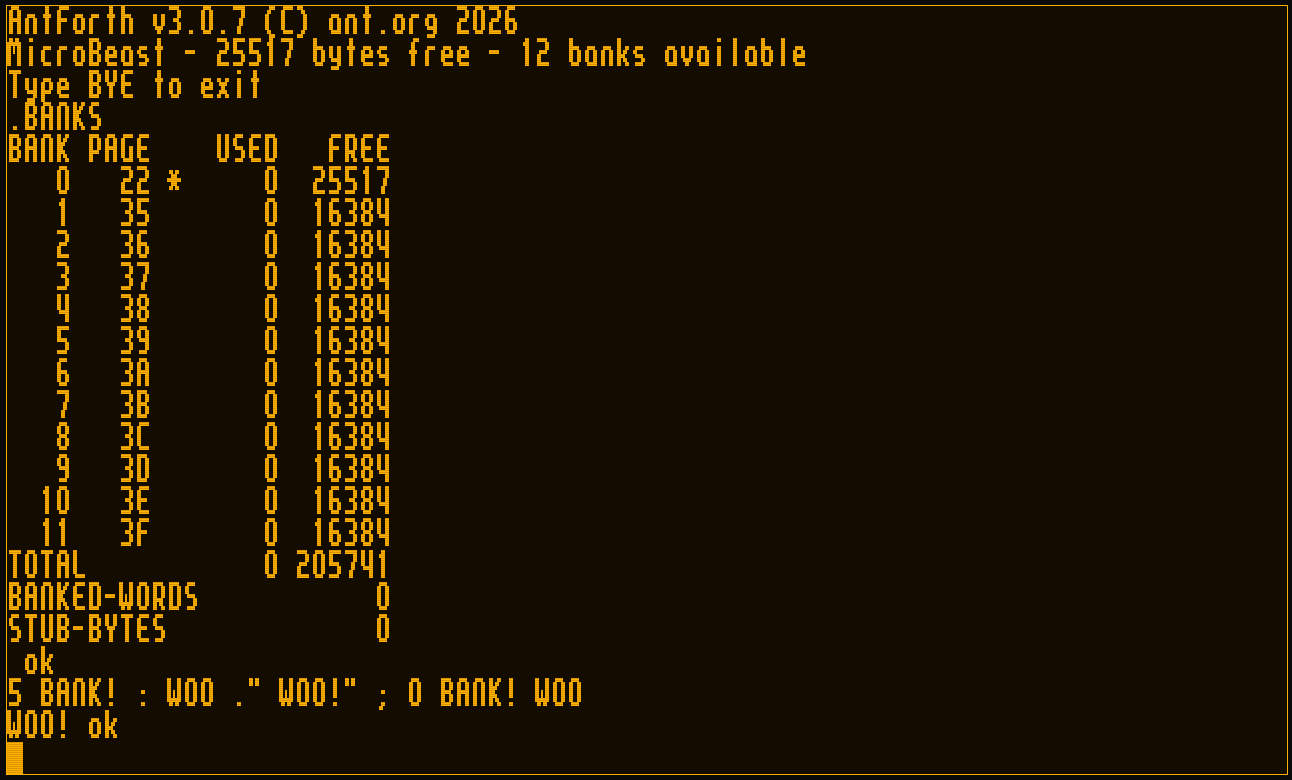
A Forth where banking is both real and legible. The final epic (Epic 22) added no new mechanism — it made the mechanism observable.
.BANKS
\ BANK PAGE    USED   FREE
\    0  22 *    1843  25685     <- bank 0 = kernel dictionary
\    5  39         0  16384
\  ...
\ TOTAL          1843 205909
\ BANKED-WORDS      0
\ STUB-BYTES        0
The REPL can show which bank you're about to type into (opt-in, so the classic prompt is untouched for everyone else):
-1 PROMPT-SHOW-BANK    \ enable the indicator
5 BANK!
[5] ok                 \ the prompt now tells you where you are
0 BANK!
ok                     \ bank 0 is suppressed — a [0] prompt is just noise
And the cross-bank machinery is end-to-end: : lands its body in the current bank and auto-emits a stub; CREATE/DOES> work across banks; MARKER/FORGET revert per-bank dictionary tails and reclaim stubs; ABORT and THROW restore your interactive bank instead of stranding you; and CODE words are redirected to fixed memory so assembler words stay callable from anywhere.
The byte ledger
Every byte was measured from a clean rebuild and accepted (or questioned) at its own story close. The phase grew the kernel by +3,504 bytes. Each row below is a fresh clean build of that release tag; the deltas sum to the total:
Milestone
Tag
Kernel size
Δ vs prev
Highlight
Phase-3 close
v2.0.0
24,995 B
—
flat-memory baseline
Epic 17
v3.0.1
26,228 B
+1,233 B
bank table, BANK@/BANK!, CL parser
Epic 18
v3.0.2
26,477 B
+249 B
descriptor-stub allocator + trampoline
Epic 19
v3.0.3
26,834 B
+357 B
per-bank HERE, bank-aware : / CREATE
Epic 19.5
v3.0.4
26,945 B
+111 B
RST-$28 self-dispatch; trampoline retired
Epic 20
v3.0.5
27,888 B
+943 B
24-bit fat pointers (FIND / WORDS)
Epic 21
v3.0.6
28,049 B
+161 B
MARKER / FORGET / state restore
Epic 22
v3.0.7
28,499 B
+450 B
.BANKS, prompt, CODE redirect
Sidebar — the envelope multiplier. Pure-addition stories in Phase 4 reliably overran their first-cut byte estimates by roughly 2.4× — enough that we started budgeting with the multiplier. The exception proves the rule: Epic 20's +943 B (the table's biggest single jump) overran its estimate by about 3.4×, because swapping 16-bit dictionary links for 24-bit fat pointers was a mechanism substitution that rippled through every lookup path — not a pure addition. "Substitution voids the multiplier" became a planning rule, carried in project memory and validated when the pure-addition epics that followed tracked close to their estimates again.
The total banking infrastructure — code plus the reclaimed-CCP structures — is 5,552 bytes, comfortably inside the ~6 KB target at the default 12 banks and well under the 8 KB cap at 29. The descriptor-stub region holds 461 slots and sits at 0/461 at boot: stubs are a runtime/lifecycle cost, not a fixed tax.
How long it took
These are actual elapsed calendar dates pulled from git history — not effort estimates. Phase 4 ran from the first Epic-16 commit on 2026-05-13 to the v3.0.7 tag on 2026-06-14: 32 days, 38 stories across 8 sub-tracks.
The calendar was anything but evenly spread, and its shape retells the same story the war-stories did:
The foundations were fast. Epics 16–18 — the memory map, the entire banking core, and the dispatch scaffold — landed in 5 days (May 13–18).
Cross-bank dispatch ate the calendar. Epic 19 and the Epic-19.5 interlude it spawned together ran May 18 – June 10 — more than two-thirds of the phase — for what is, on paper, "make a call return to the right page." Getting that correct on silicon, not just green in the emulator, was the whole job. The war stories above are where those weeks went.
Once dispatch was solid, the rest fell quickly. Find, lifecycle, and the entire polish-and-close epic — three epics, 10 stories — took 4 days (June 10–14). A correct foundation makes everything built on top of it cheap.
The lopsidedness is the lesson: in a banked-memory port, the hard part isn't the breadth of the wordset — it's the one mechanism everything else stands on.
The takeaways
Three things I'd carry into any phase like this:
Find the invariant and defend it relentlessly. The "triple excludes the shared bucket array" property is the spine of the whole design. Once it was explicit, half the scary review findings became one-command refutations.
Name your interludes. When Epic 19 turned out to rest on a fragile dispatch design, splitting the stabilization work into its own epic — with its own retro and tag — kept the feature epics honest and the history legible. Smuggling stabilization into a feature epic hides the cost.
Keep the adversary cranked. A code review that finds nothing is the rare exception, not licence to relax. Phase 4's reviews caught a genuine silent-corruption bug on nearly every pass; the one clean pass (Epic 22) was clean because a settled mechanism gave it little to attack — not because the work was beyond reproach.
Phase 4 was a rocky road with an easy finish. The bet — that a 64 KB Z80 could be taught to use half a megabyte through one honest little window, and that an AI-orchestrated, spec-driven loop could build it correctly on real silicon — paid off. antforth v3.0.7 is on the MicroBeast, addressing all of it.
antforth
AntForth with half a megabyte of RAM
How we added banked-RAM support to a CP/M Forth on the MicroBeast — the architecture, the war stories, and the AI-orchestrated process that held it together.
Many of the other words in the Search-Order extensions are the ancient precursors of modern search-order support, which is now effectively obsolete, the most familiar is probably ALSO. Curiously there is no corresponding VOCABULARY word, without which ALSO makes no sense.
In fact I probably shouldn't use the word "vocabulary" at all as it is synonymous with the old ways, but it is semantically correct.
FORTH-WORDLIST
Previously all of AntForth's built-in words lived in the single, anonymous dictionary. In a new multi-dictionary world, their dictionary is but one of many. To get a handle on this dictionary we use the new word FORTH-WORDLIST.
This is essentially a dictionary hash management structure (64 pointers to lists) plus a link pointer to the next wordlist in the chain. The value returned is called a wid (word-list identifier).
WORDLIST
WORDLIST is how you create and allocate a new wordlist. It allocates 130 bytes for the hash-list dictionary structure, initialises it with sane values, and returns the address of this structure in TOS as a wid.
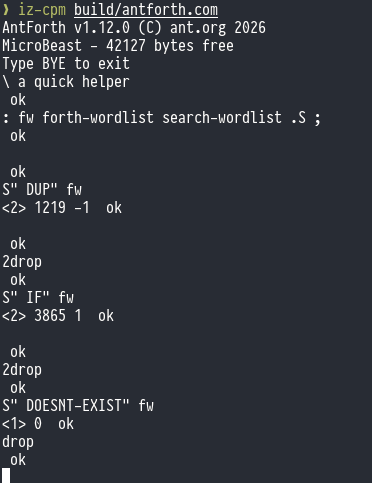
SEARCH-WORDLIST
SEARCH-WORDLIST allows you to search a specific word list (and not the entire search order) for the word identified by the given string. If the word exists, it returns the xt for that word, along with a 1 if the word is immediate, or a -1 if it is not.
SEARCH-WORDLIST takes the address and count of the name, plus the wid of the word list to be searched.
GET-ORDER
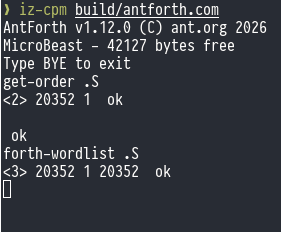
GET-ORDER returns a list of wids that comprise the current search order to the stack, along with the current search depth.
When AntForth has just started, the search-order only contains a single wid ( that for FORTH-WORDLIST) and the search depth is 1.
SET-ORDER
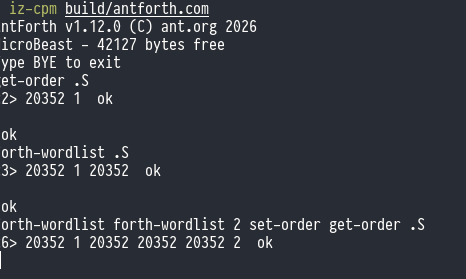
SET-ORDER performs the reverse operation to GET-ORDER: it takes a search depth and a list of wids from the stack and writes the search-order list from them. You can have up to 16 different wids in the search-order.
There's no checking for duplicate wids - it's perfectly permissible (although pointless) to have the same wid appear twice. It means the same wordlist will be searched twice, but obviously if said wordlist contains the word of interest, its first incarnation will find a match and its second incarnation will not be invoked. If the word does not exist, the wordlist will be searched twice, the second being fruitless. It does mean I can make this example though:
GET-CURRENT, SET-CURRENT, and DEFINITIONS
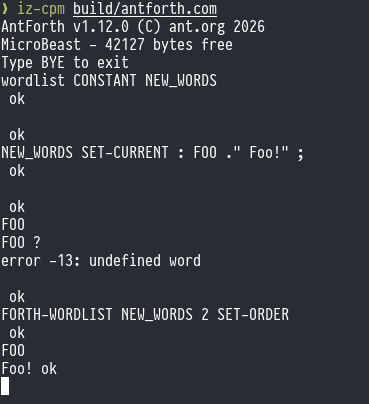
The words we've discussed so far cover searching for words: how do we control which word-list receives a new word definition?
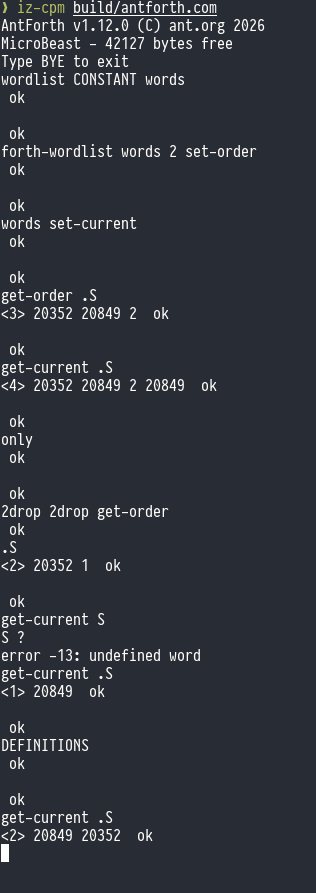
In ANS Forths this is called the "compilation word-list" or sometimes "current word-list", and you can get it with GET-CURRENT (which returns a wid to TOS) or set it with SET-CURRENT which takes a wid from TOS.
DEFINITIONS is equivalent to setting SET-CURRENT to whichever wid is currently first in the search-order: new definitions go to the first dictionary in the currently active set of dictionaries.
ONLY
ONLY is the sole-surviving refugee from the old Forth Vocabulary era: its purpose is to set the search-order back to the default state: that is, a single wid which is that of FORTH-WORDLIST and a search depth of 1.
Note that this doesn't change the setting of the "compilation word-list", so you may want to combine ONLY with DEFINITIONS for a true reset.
antforth
Multi-vocabulary search order
Epic 12 is all about vocabularies and search orders. Up to now, all AntForth words (be they system defined or user defined) have lived in a single dictionary. You may recall that the dictionary is a simple hash-based mechanism that manages 64 separate lists of words: the hashing function balances
Note that ANS Forth's exception handling centres around the THROW, CATCH, ABORT and ABORT" words, which differ from many traditional implementations with words like ALERT, (ALERT), ESCAPE, EXCEPT etc.
Planning
Nothing too remarkable, just the usual cycle of /bmad-create-story, /mad-dev-story and /bmad-code-review finishing off with a retro /bmad-bmm-retrospective.
CATCH and THROW
The CATCH word sets up an exception handling context: any exceptions that are thrown (by the THROW keyword) within the exception context are handled by the code that immediately follows it.
If the exception handling code immediately follows CATCH how do we tell it what code to execute in the exception context - i.e. the code we want to run that might throw ?
We use an execution token, which is Forth's equivalent of a pointer to a function. It's the address of a word's implementation. If you're thinking "that sounds like the Code Field Address of the word" then you'd be right (for an indirect threaded Forth like AntForth).
The usual approach is something like this:
: safe/ ( n1 n2 -- n1/n2 | 0 error-code )
  ['] / catch ;  \ Executes / , catches error if n2 is 0

: test-division
  10 0 safe/ ?dup IF
    ." Error occurred: " . cr \ Handles error (e.g., prints -50, etc.)
  ELSE
    ." Result: " . cr        \ Executes if no error
  THEN ;
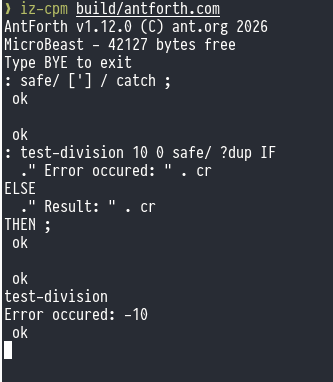
Let's see it in action:
We get the xt for the builtin / word and use CATCH to execute it. If that code throws an exception (for example, attempted division by zero) then whatever value was thrown goes in TOS execution immediately resumes with the word following CATCH. Otherwise if no exception was thrown (or if a 0 was explicitly thrown) CATCH pushes a zero onto TOS and continues.
?DUP duplicates TOS only if it is non-zero, so it's only going to DUP if an exception was thrown. If an exception was thrown, ?DUP duplicates the error code so that we can both test it with IFand print it out with .. But if an exception wasn't thrown TOS contains zero, so we don't ?DUP, IF consumes the 0 in TOS and the . in the ELSE clause prints the value of the division operation, which was underneath TOS.
Here's what it looks like when the exception isn't thrown:
THROW simply takes an error code from TOS and throws it:
: check-range ( n -- )
  dup 10 > IF -99 throw THEN ; \ Throws -99 if n > 10
Note that that includes error code 0. The -1 error code is special, and performs the action of the ABORT word (more details below). Similarly -2 is special, and performs the action of the ABORT" ("abort-quote") word, more details below.
Rethrowing
Exception handlers nest, so it is quite acceptable to handle an exception, do some cleanup, and then re-throw the exception to a higher level exception handler:
: managed-word
  ['] risky-word catch
  dup IF \ If an error happened
    ." Cleaning up..." cr
    throw \ Rethrow the original error
  THEN ;
ABORT
ABORT (or -1 throw) immediately quits execution, and, crucially clears the data and return stacks.
: PROCESS-DATA ( n -- )
  DUP 100 > IF
    DROP
    CR ." Value too high, aborting."
    ABORT
  THEN
  . ;

50 PROCESS-DATA   \ Output: 50 ok
150 PROCESS-DATA  \ Output: Value too high, aborting. ok
ABORT"
ABORT" is a compile-time word that parses a string (ending with a "). At run-time, it removes a value from TOS and if it's not zero it displays the string that was defined, then follows up with the usual ABORT sequence (clearing the stacks).
Epic 11 will give us exception handling - the ANS Forth "EXCEPTION" word-set and also the ANS Forth "EXCEPTION-EXT" word-set - although the user should note that as of 2017 "EXCEPTION-EXT" is no longer optional and now considered mandatory, so "EXCEPTION-EXT" is
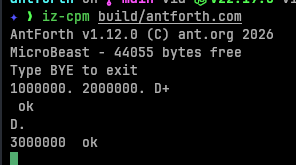
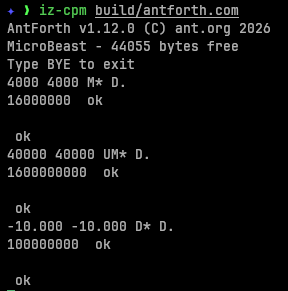
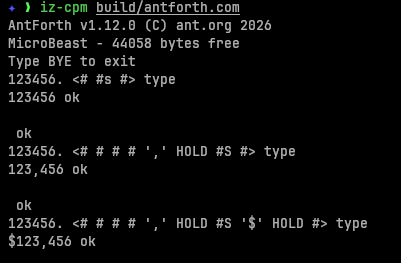
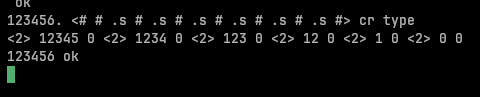
Pictured numeric output is Forth's traditional technique for displaying formatted numeric output. It operates on double precision signed integers, and builds the ASCII representation digit-by-digit from right to left.
You start a conversion with <#, then you get the least significant digit with #. Then the next significant digit with #, and so on. At any point you can say #s which means "as many #s as are left to finish converting the number". You can use HOLD to insert other characters at appropriate junctures.
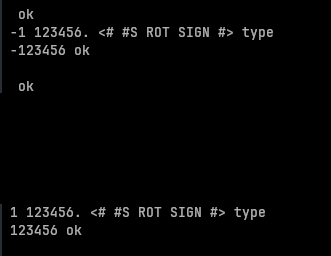
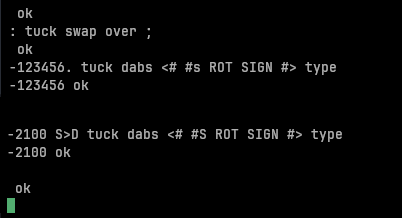
You can use SIGN to print a negative sign if needed, although it's behaviour is a little weird: it takes a (single precision signed) integer from the top-of-stack and it it is negative it prints a minus sign. So you need to have this value on the stack before you start number conversion, and you need to prefix your SIGN word with a ROT word, like so:
You may be thinking "hold on, what's that ROT in there for?!" - I certainly did. The answer is, at each # step the interpreter is doing ( ud-lo ud-hi -- quot-lo quot-hi ) so there's always a working quotient on the stack until we emit #> - so at the point that we emit SIGN (which must come before #>) the top three entries on the stack are -1 0 0 - our original -1 and two cells for the remaining double precision quotient (which is zero). So the ROT brings the -1 to the top-of-stack so SIGN can consume it.
We can actually see this in action:
TUCK DABS ... ROT SIGN is a common idom in Forth to display a signed double precision number, and S>D TUCK DABS ... ROT is another for single precision signed numbers.
*/ and */MOD
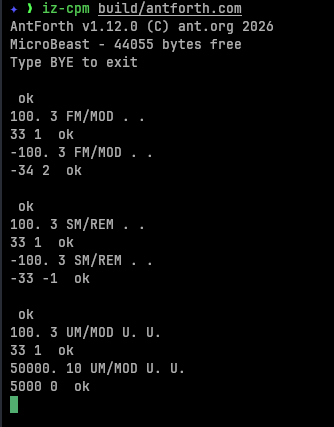
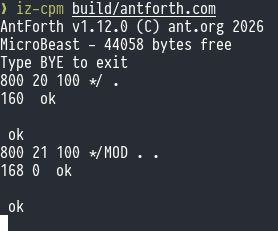
*/ takes three single-precision numbers on the stack (n1 n2 n3 -- n4) - it multiples n1 by n2 giving a douple precision result, then divides that by n3 to give the quotient n4.
*/MOD is similar but it also returns the remainder (n1 n2 n3 -- n4 n5).
EVALUATE
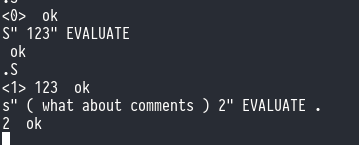
EVALUATE evaluates Forth code from a string exactly as if you had tyed it in. It's the equivalent to eval() from other languages.
ENVIRONMENT?
The ENVIRONMENT word lets you query certain environmental constants in the system. There are a number of different queries you can make, each identified by name. The name precedes the ENVIRONMENT call and is in the usual Forth (c-addr u --) (start address, count) convention. You'll get back a true or a false in TOS to indicate whether ENVIRONMENT? knows what you are talking about: a TRUE value is accompanied by other pertinent information in the rest of the stack.
Here are the queries AntForth supports:
Name
Type
Constant?
Meaning
/COUNTED-STRING
n
yes
max size of a counted string, in chars
/HOLD
n
yes
Size of pictured numeric output string in chars
/PAD
n
yes
size of scratch area pointed to by PAD
ADDRESS-UNIT-BITS
n
yes
size of one address unit, in bits
FLOORED
flag
yes
true if floored division is the default
MAX-CHAR
u
yes
maximum value of any character
MAX-D
d
yes
largest usable signed double integer
MAX-N
n
yes
largest usable signed integer
MAX-U
u
yes
largest usable unsigned integer
MAX-UD
ud
yes
largest usable unsigned double integer
RETURN-STACK-CELLS
n
yes
maximum size of the return stack, in cells
STACK-CELLS
n
yes
maximum size of the data stack, in cells
AntForth also supports wordset queries from the 1994 ANS Forth standard, although the user should note that the 2012 standard makes these as obsolete:
Name
Type
Constant?
Meaning
/CORE
flag
no
True if complete Core wordset is present
/CORE-EXT
flag
no
True if Core extensions wordset is present
Other values may become available as AntForth supports them.
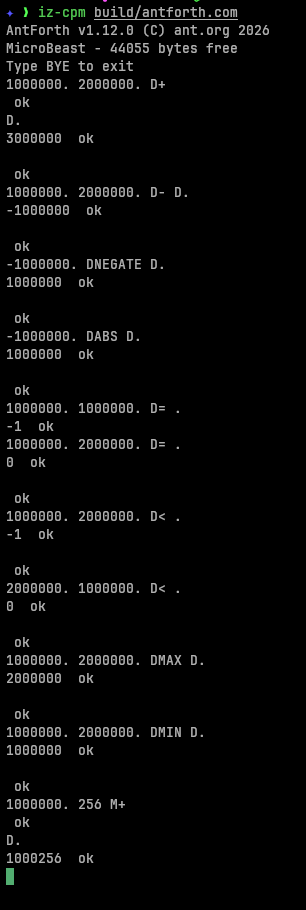
Epic 10 is all about mopping up the remaining bits of missing functionality that stop us claiming 100% compliance with the ANS Forth Core wordset.
The main omissions are:
* double-precision integers and their operators
* the traditional "pictured numeric output" system for printing formatted numbers
* EVALUATE and ENVIRONMENT? and
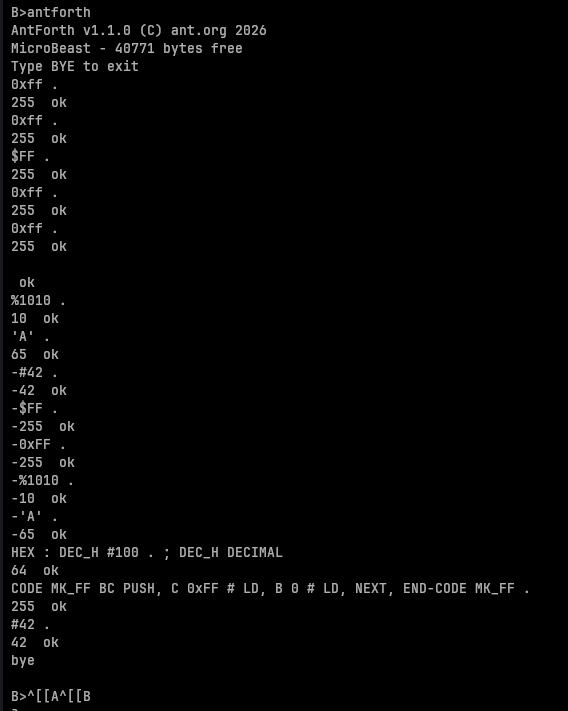
Epic 9 is all about making numeric literals in AntForth more pleasant to use.
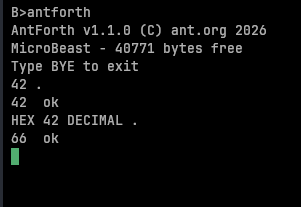
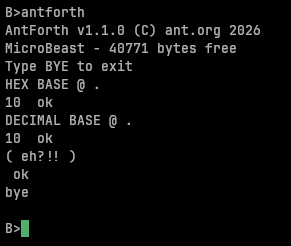
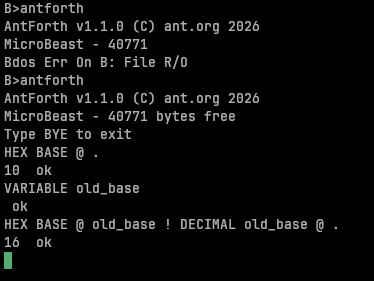
Currently, when you type 42 then decimal 42 goes onto the stack, and if you actually wanted 0x42 hexadecimal then you'd write HEX 42 DECIMAL .. Both HEX and DECIMAL change the radix that'
With an entire epic of refactoring under our belt, AntForth is lean and mean! It's time to focus on adding some new functionality. Here's what I want to add in Phase 2:
* Add the ability to prefix hex numeric literals with $ and binary numeric literals with
The smallest z80 assembler I can find is Kroc's v80, which is a table driven assembler that weighs in at 6.7 KB according to the author. I'd give you a link, but he's deleted the entire repo as an act of anti-AI defiance. Oh dear. (Ironic that I only discovered v80 through the AI search thingy at the top of google search).
But if his post is to be believed, AntForth is 1.8 KB off the pace.
I'd noticed that there was a lot of duplication in outputting console messages, with a lot of places in the code setting up their own BDOS calls. In addition it seemed like there was a lot of duplication, particularly around stacking registers, that might benefit from factoring out the common functionality (which is a very Forth thing to do!).
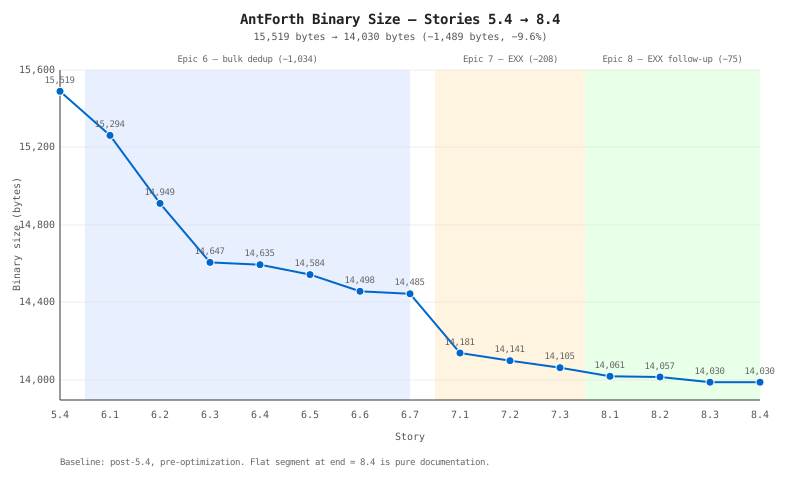
I assembled the LLM team and set them to finding opportunities to reduce the code size. We created a new epic 6 just for optimisation, covering the stdout type stuff I already mentioned, and various 'peephole' optimisations around refactoring code. They came up with an ingenious LD, rework on their own.
At every story in this sprint the assembler remained fully functional whilst gradually reducing in size. No regressions at all.
While doing the retro at the end of sprint 6, it occured to me that much of the complexity that remained in LD, (and in many other words) was to do with stacking registers while we juggled them for other purposes - something that the alternate register set would be ideal for, and which we hitherto had not used at all.
Cue epic 7 (only 3 stories this time) for shadow register optimisations.
During the retro for epic 7, a few more optimisations were identified, including that we hadn't taken advantage of EX AF, AF' either, so another epic (8) was created, with 4 short stories this time around.
TL;DR - how big is it now?
After 14 sprints-worth of refactoring, the final binary size is:
** 13.7 KB **
That means our assembler is 6.9 KB, so we're roughly 200 bytes larger than the most compact assembler on record - 1.5 KB smaller than the original implementation!
MVP is done! Before starting to think about additional phases and new features, I wanted to do a bit of optimisation for code size, in part prompted by the tentative offer of putting AntForth into the MicroBeast's romdisk - where space is at a premium.
When we made